VoltFitness Theme + 18 Plugin Bundle for NopCommerce
Created on: Oct 29, 2026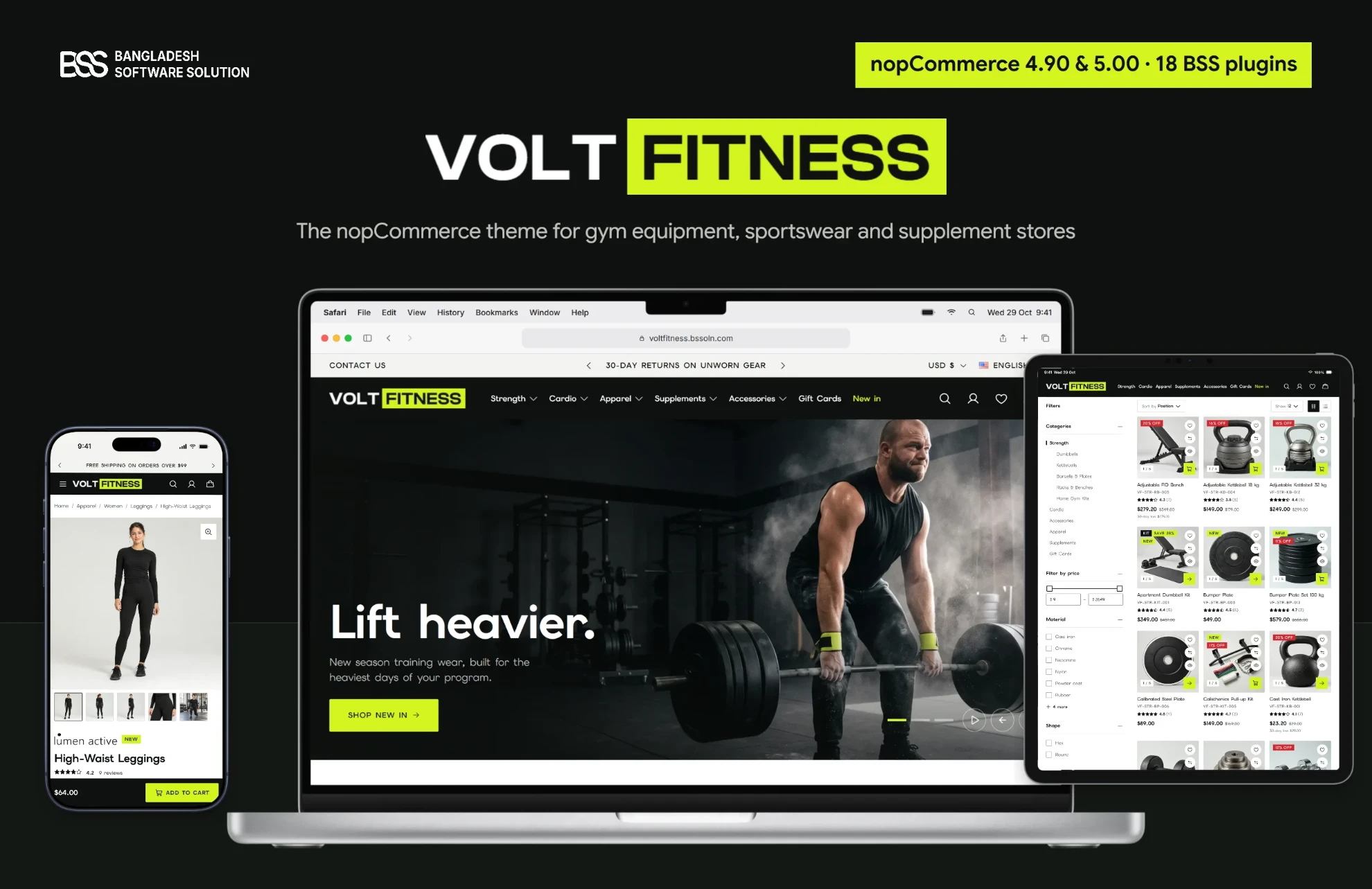
Set up VoltFitness for your store
VoltFitness is a nopCommerce theme for fitness retail: equipment, apparel, supplements and accessories in one store. This guide takes you from the download to a configured store: install the theme and BSS Core, switch the store to VoltFitness, add your licence, then work through every theme setting, the home page plugins and the 18 plugins in the bundle.
Each picture pairs the admin page with the storefront. The numbers in the admin match the numbers on the storefront, and the list under the picture says what each one changes.
- nopCommerce
- 4.90 and 5.00
- .NET
- 9 on 4.90, 10 on 5.00
- Bundle
- 18 BSS plugins
Rather have it set up for you?
Choose Installation support for $60 when you buy VoltFitness, and the BSS team sets it up on your store so it opens ready to sell:
- the theme, BSS Core and all 18 plugins installed, and the store restarted;
- your store switched to VoltFitness, your licence key added and every plugin checked;
- the theme and the home page blocks configured so your store starts from the demo layout.
01Get started
Install the theme
VoltFitness needs a nopCommerce 4.90 or 5.00 store. The download from your order holds the theme, BSS Core and every bundled plugin as separate zip files; use the packages built for your nopCommerce version. The pictures in this guide were taken on 4.90, and 5.00 has the same settings on the same pages.
Download the package from your order: My accountOrdersOrder details.
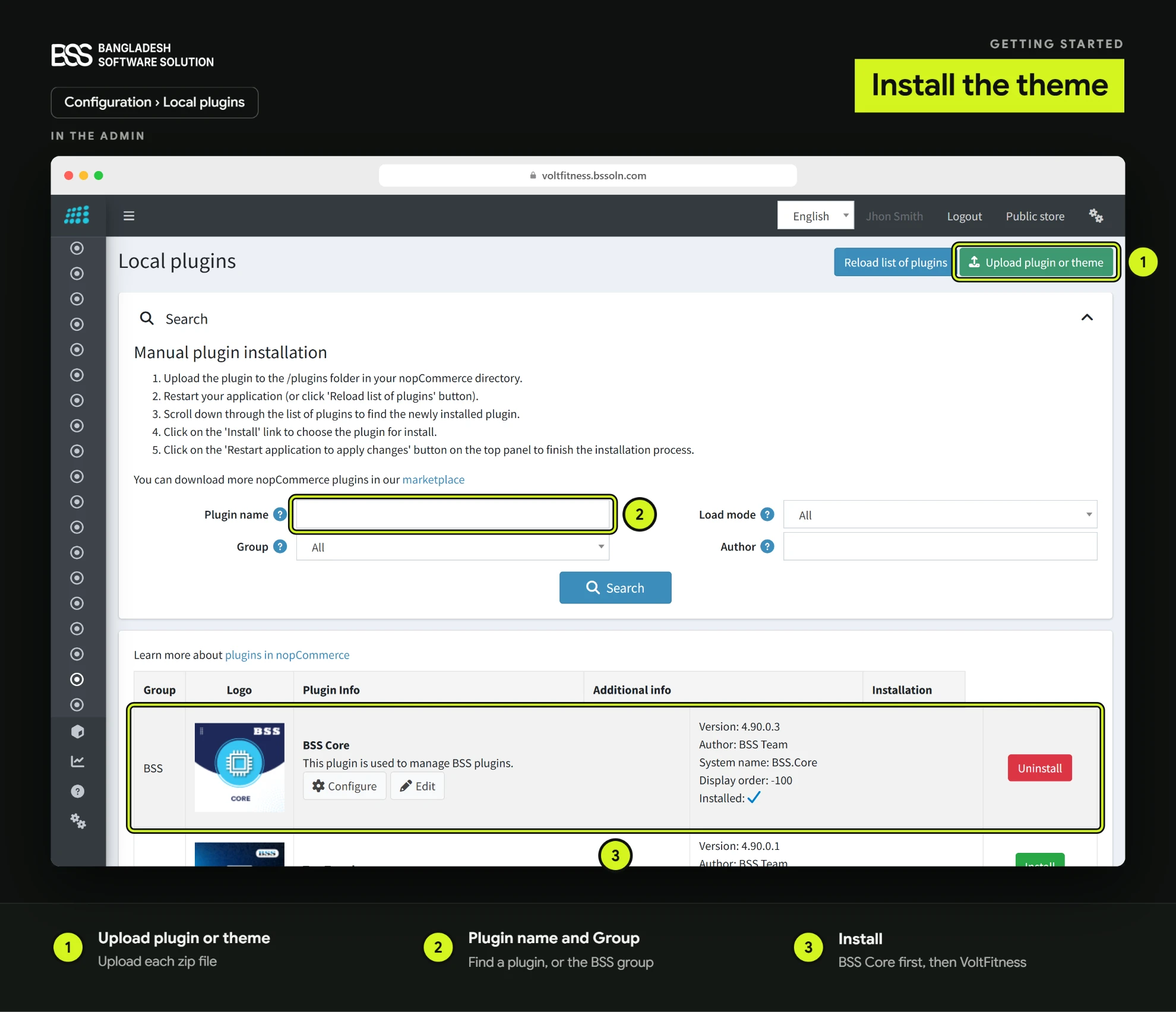
In the admin, go to ConfigurationLocal plugins and click Upload plugin or theme (1). Upload BSS Core and BSS VoltFitness first; the bundled plugins can follow now or later.
Find them by Plugin name (2), then click Install (3) for BSS Core first and BSS VoltFitness next.
Restart the application so nopCommerce loads the theme: open the gear menu at the top right of the admin and choose Restart application.
 (opens the full-size picture)
Make VoltFitness the store theme
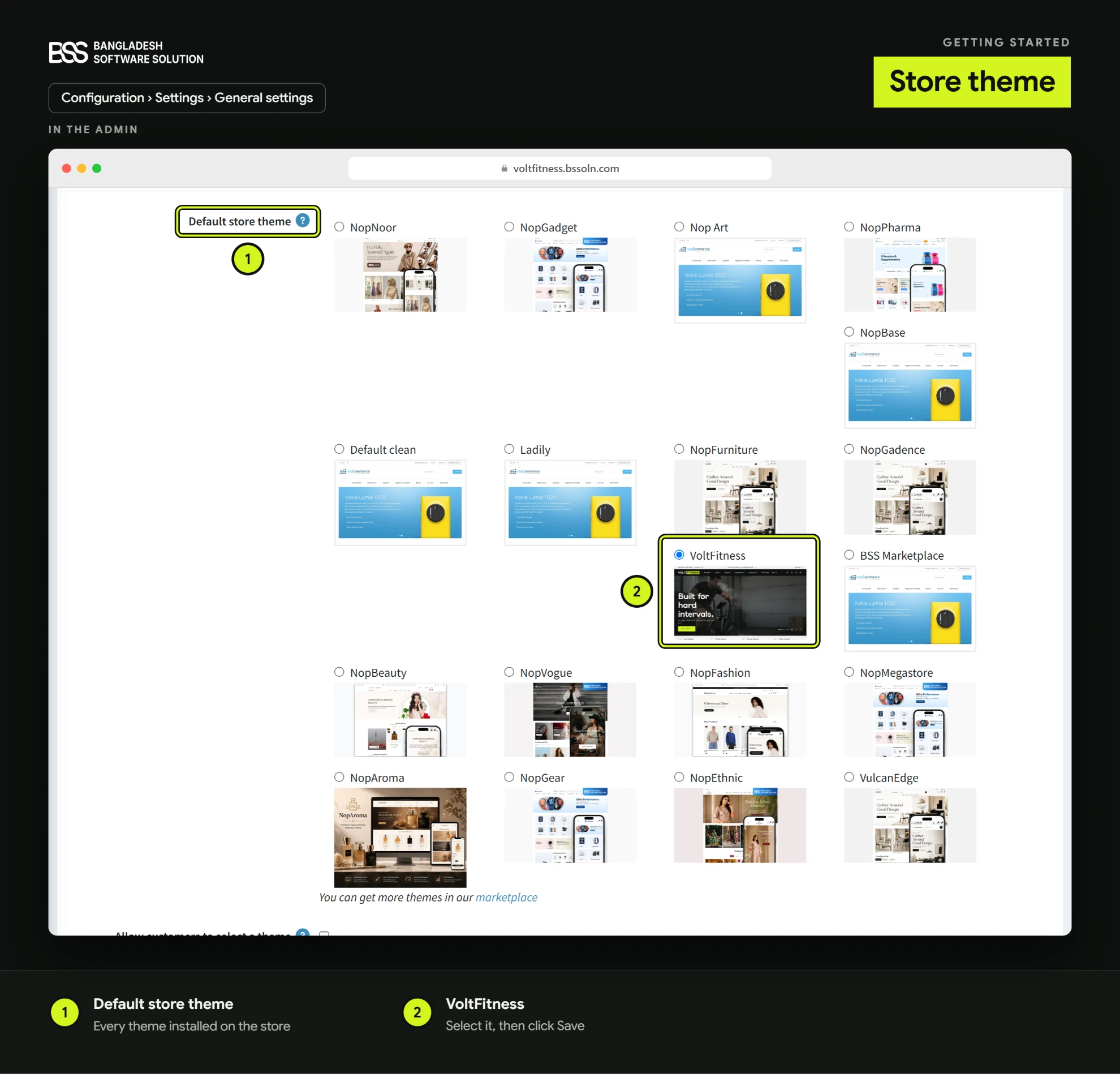
Go to ConfigurationSettingsGeneral settings.
Under Default store theme (1), select VoltFitness (2) and click Save.
 (opens the full-size picture)
Install the bundled plugins
The home page, product cards, product page and checkout you see on the demo come from the bundled plugins, so install them to get the same store.
Upload the plugin zip files in ConfigurationLocal plugins, the same way as the theme.
Set Group to BSS and click Search to list only BSS plugins, then install the ones you want.
Restart the application once when you have installed them all.
Add your licence key
After you buy, BSS sends your licence key by email.
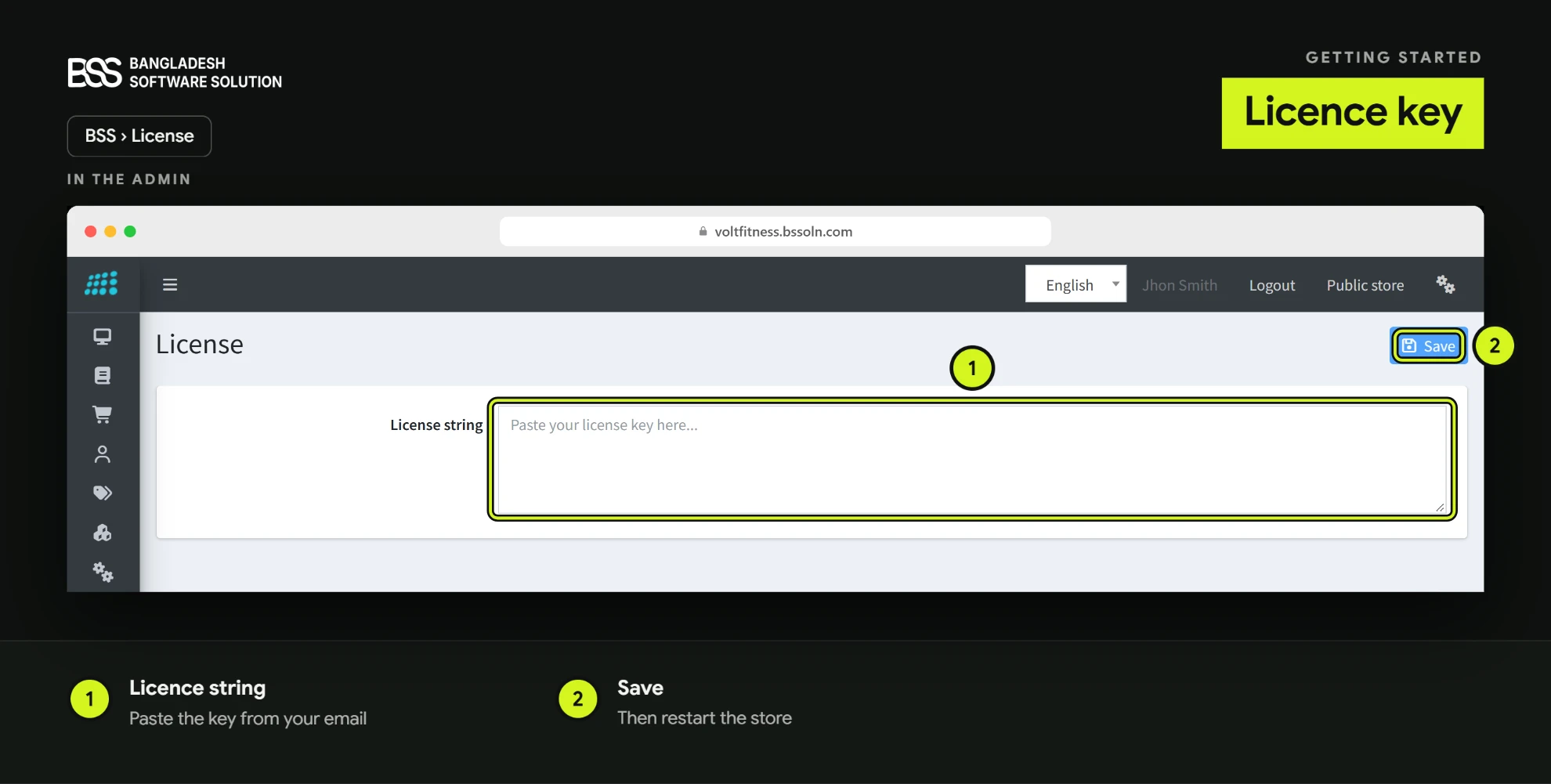
The first time you open the theme's configuration or a bundled plugin, nopCommerce asks for the licence. You can also enter it any time in BSSCore settingsLicense.
Paste the licence string (1), click Save, then clear the cache from the gear menu with Clear cache.
 (opens the full-size picture)
02Theme settings
Open the theme settings
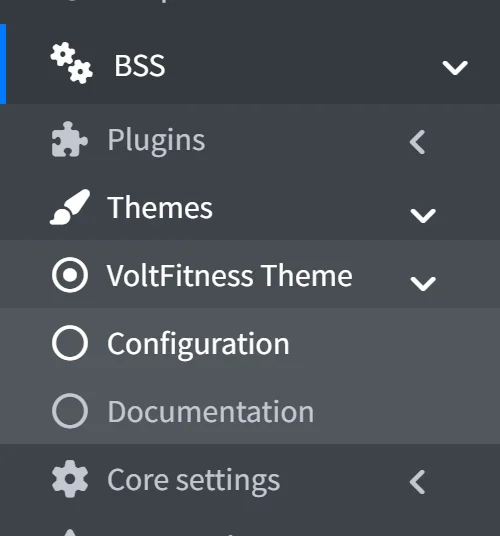
All theme settings live on one page: BSSThemesVoltFitness ThemeConfiguration.
The page is split into twelve panels, described one by one below. Change what you need and click Save at the top of the page. Colours, fonts and layout grids can also be tried live on the storefront with the Theme Builder. In a multi-store setup, pick the store at the top of the page first; each setting can then differ per store.
Colours
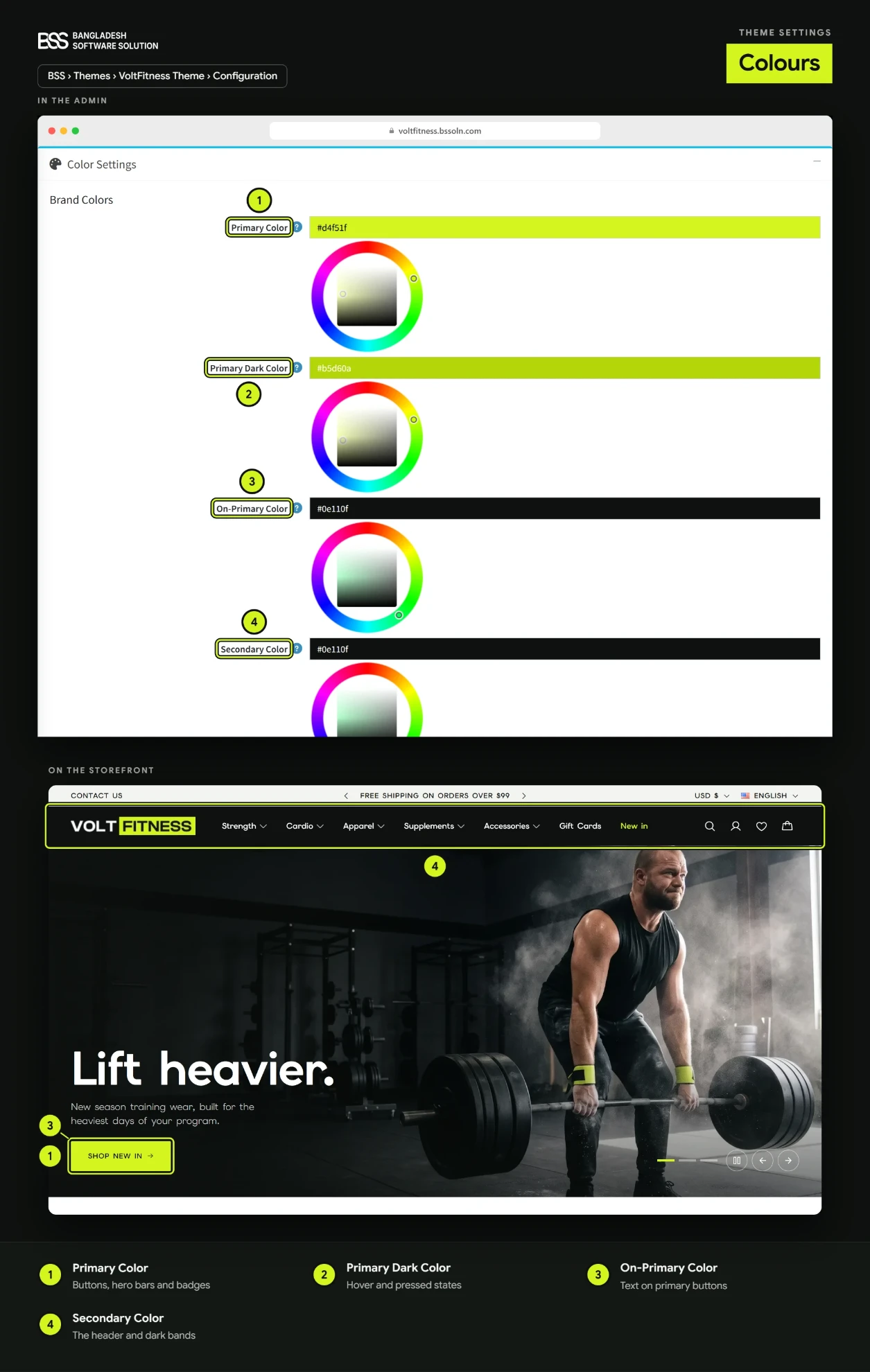
Every colour is a hex value with a colour picker. The theme turns them into CSS variables, so one change reaches every page.
 (opens the full-size picture)
- Brand
- Primary (1) is the brand colour on buttons, tape labels, hero bars and badges (volt by default). Primary dark (2) is its hover and pressed shade. On-primary (3) is the text and icon colour placed on primary fills; keep it high contrast against the primary. Secondary (4) is the second brand colour: the header and the dark bands, ink by default.
- Backgrounds
- Background primary for pages and sections, Background secondary for cards and grouped sections.
- Text
- Text for body copy, Text secondary for less important content, Text light for helper text and subtle labels.
- Buttons
- Background and hover colours for primary and secondary buttons.
- Borders and corners
- Border color for dividers and inputs. Base radius rounds inputs, buttons and pills; 0 makes them square. Card radius small, medium and large round chips, product cards and large panels such as dialogs.
- Overlay
- The mask behind dialogs and drawers. Accepts hex, rgb, rgba or transparent.
- Status
- Success, error and warning colours for messages and notifications.
- Neutrals
- White, black and the gray scale from Gray 100 to Gray 500 used across the interface.
Typography
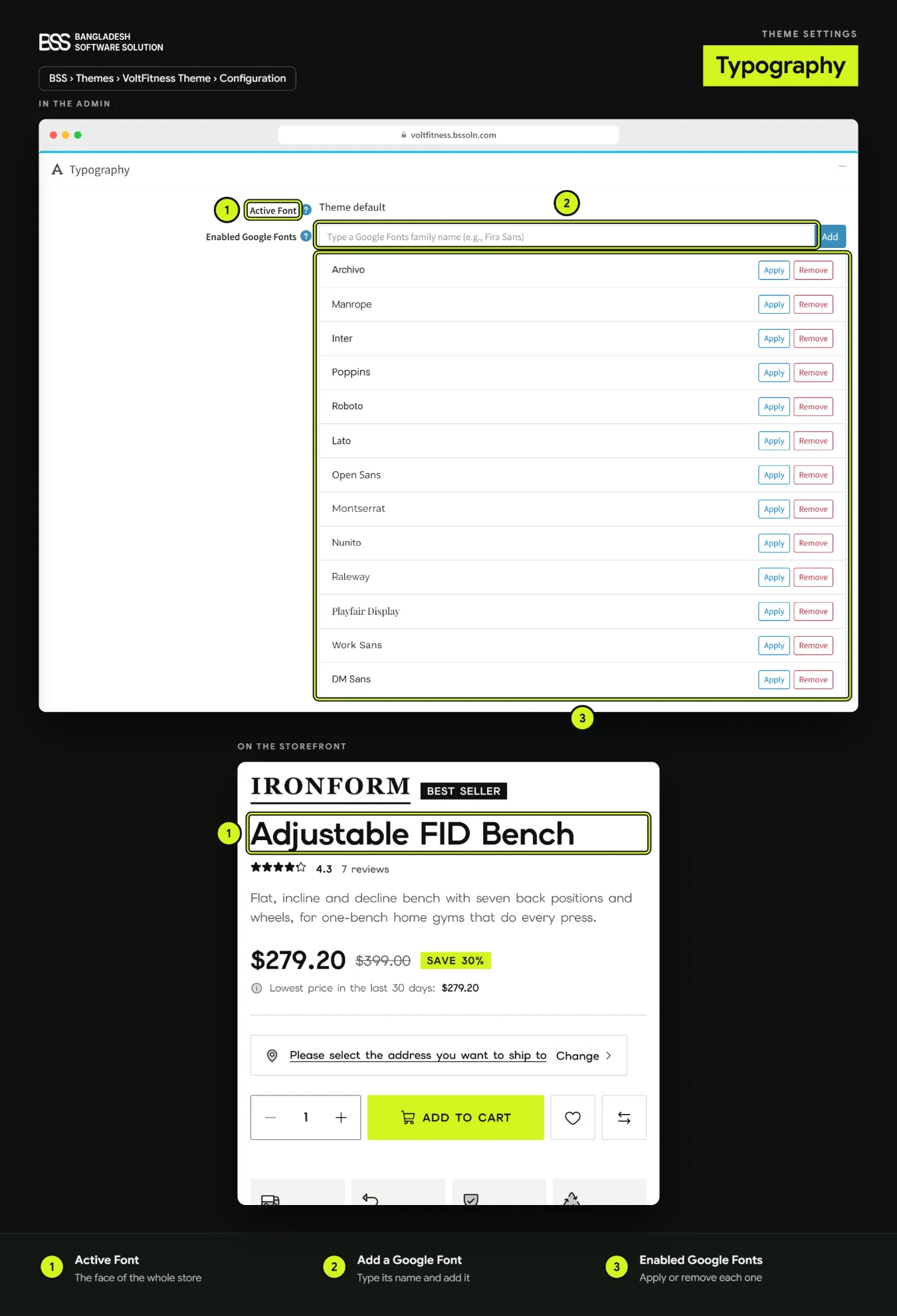
VoltFitness uses one typeface for headings and text. The default is Elms Sans, which ships with the theme.
 (opens the full-size picture)
- Active font (1)
- The font the storefront uses now. Theme default means Elms Sans.
- Add a Google Font (2)
- Type a Google Fonts family name, such as Fira Sans, and click Add.
- Enabled Google Fonts (3)
- Apply makes a font active; Remove takes it off the list. These are also the fonts the storefront Theme Builder offers.
Header, promo bar and search
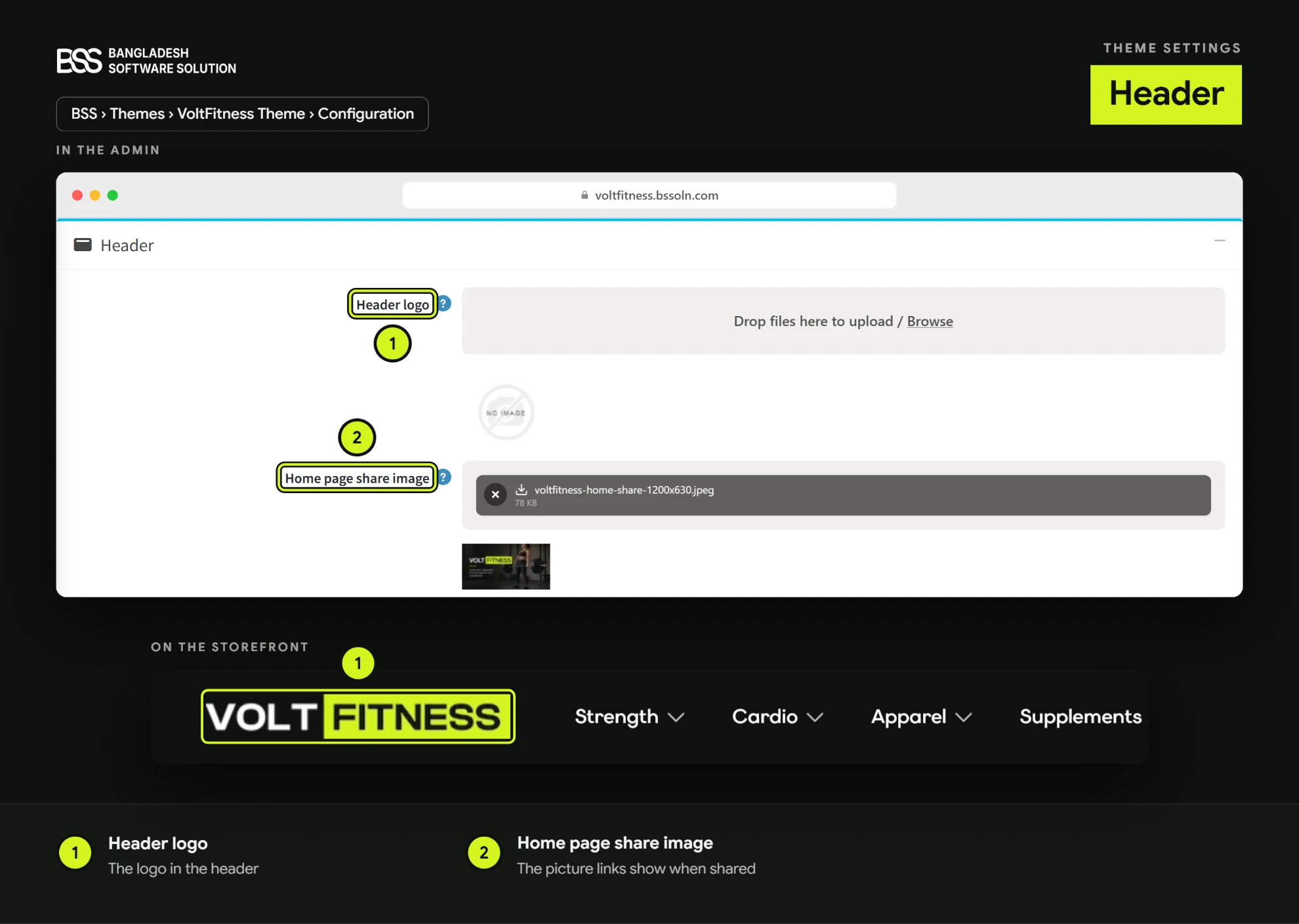
The Header panel sets the logo, the share picture, the promo messages in the top bar and the departments in the search panel.
 (opens the full-size picture)
- Header logo (1)
- An optional light version of your logo for the dark header bar. If it is empty, the store logo from General settings is used.
- Home page share image (2)
- The picture social networks and chat apps show when someone shares your home page. Use a 1200 x 630 px JPEG or PNG and keep the logo and words inside the middle 1000 x 520 px. Product pages keep their own product photo. It shows while Open Graph or Twitter meta tags are on in General settings, SEO.
 (opens the full-size picture)
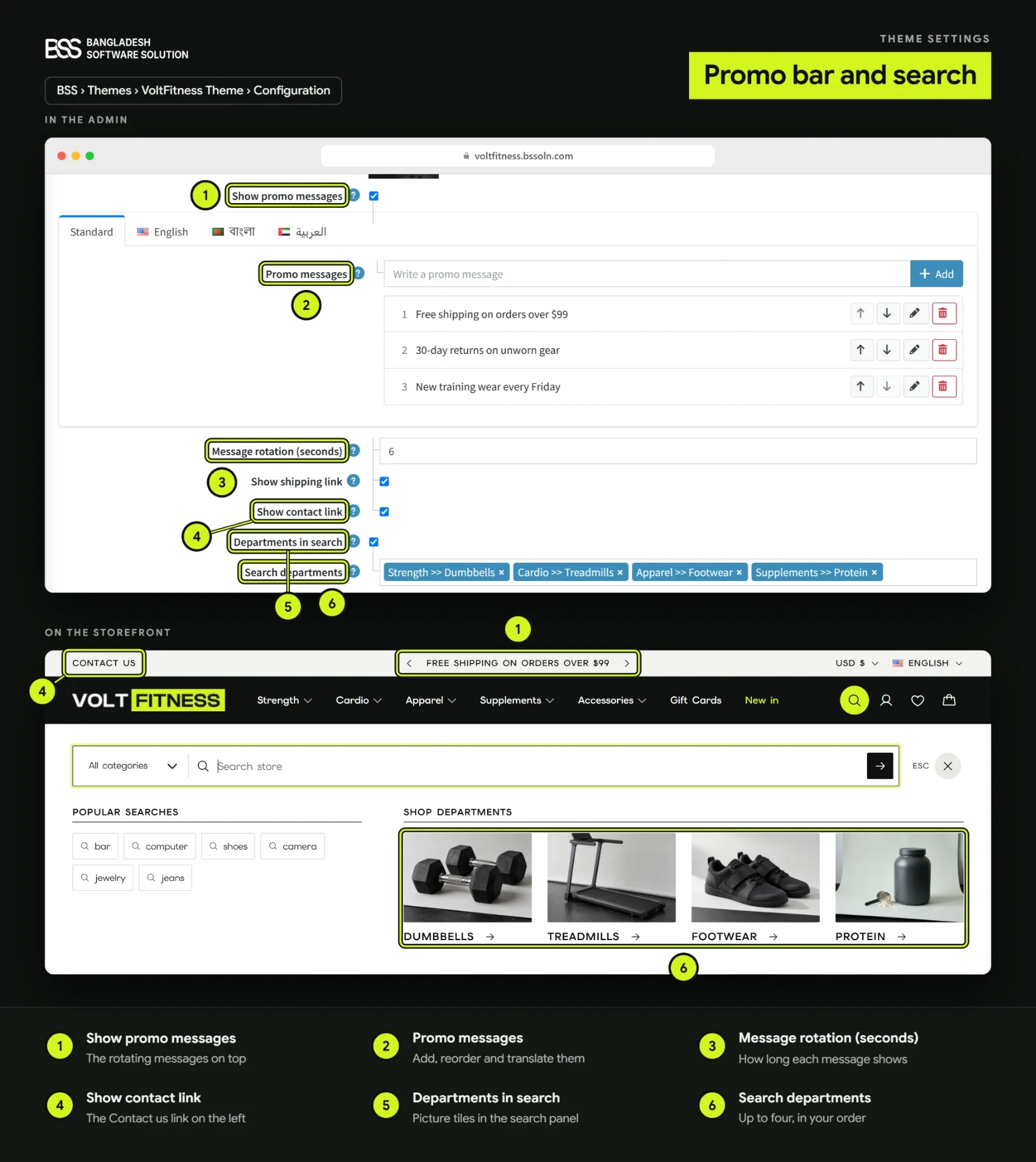
- Show promo messages (1)
- Rotates the promo messages in the top bar.
- Promo messages (2)
- The messages, in the order the bar shows them. Add, edit, reorder or delete them here; simple HTML such as
<strong>or a link is allowed. Translate them per language. - Message rotation (3)
- How long each message stays, from 2 to 60 seconds. Hovering or focusing the bar holds the current message.
- Show shipping link, Show contact link (4)
- Links at the start of the top bar: one to the ShippingInfo topic, one to the Contact us page.
- Departments in search (5)
- Shows department picture tiles in the search panel before the shopper types, and a department list beside the results.
- Search departments (6)
- Up to four categories for the search panel, in the order you pick them. The tiles show those with a picture. Leave it empty to show your first four top-level categories.
Footer
 (opens the full-size picture)
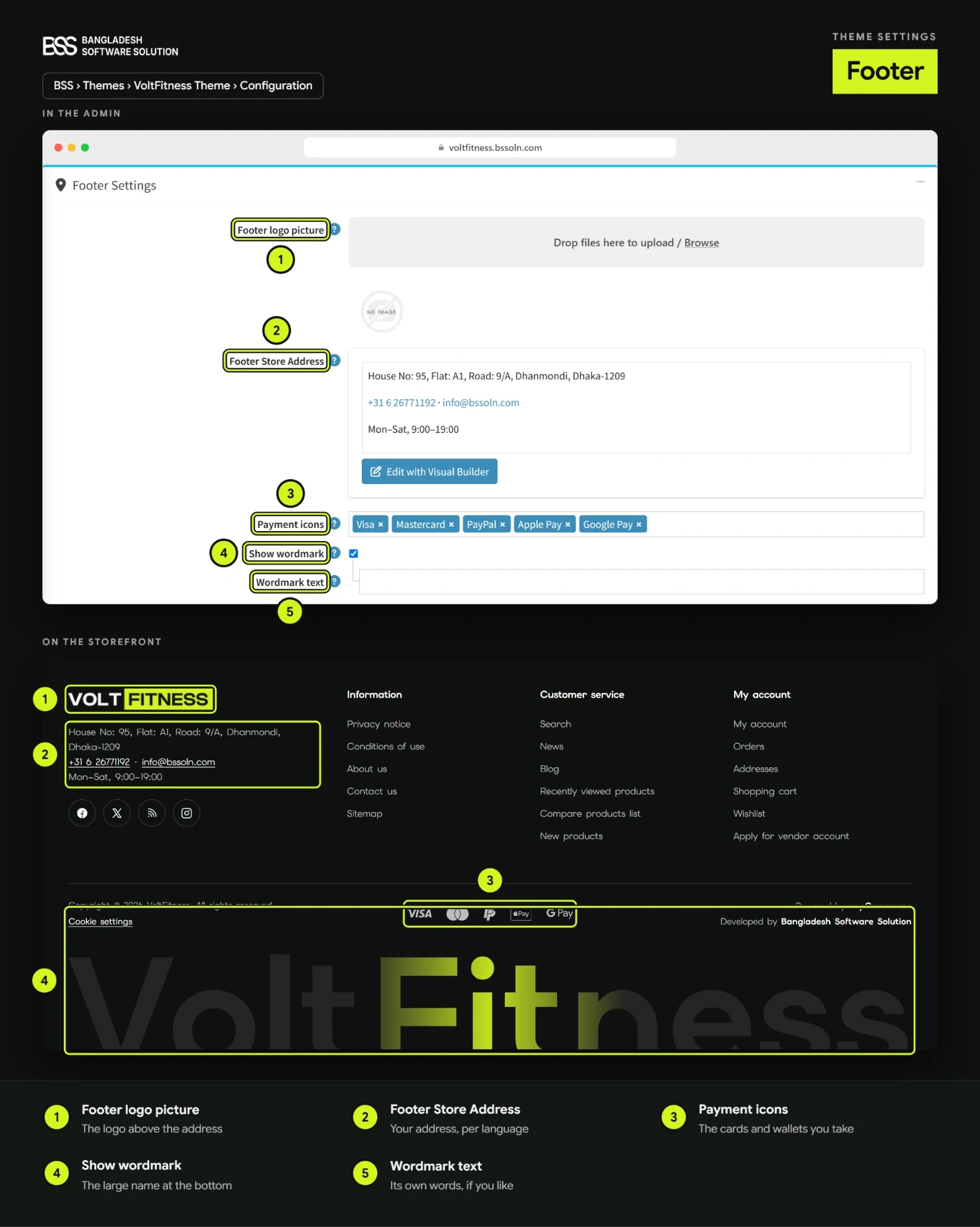
- Footer logo picture (1)
- The logo on the dark footer; use a white or two-tone version. If it is empty, the header logo is used, then the store logo.
- Footer store address (2)
- Rich text for your address, phone, email and opening hours, per language.
- Payment icons (3)
- The payment methods shown as icons in the footer's bottom bar. Leave it empty to hide the row.
- Show wordmark (4)
- Ends the footer with the store name in large type across the full width.
- Wordmark text (5)
- The text for the wordmark. Leave it empty to use the store name.
Theme Builder
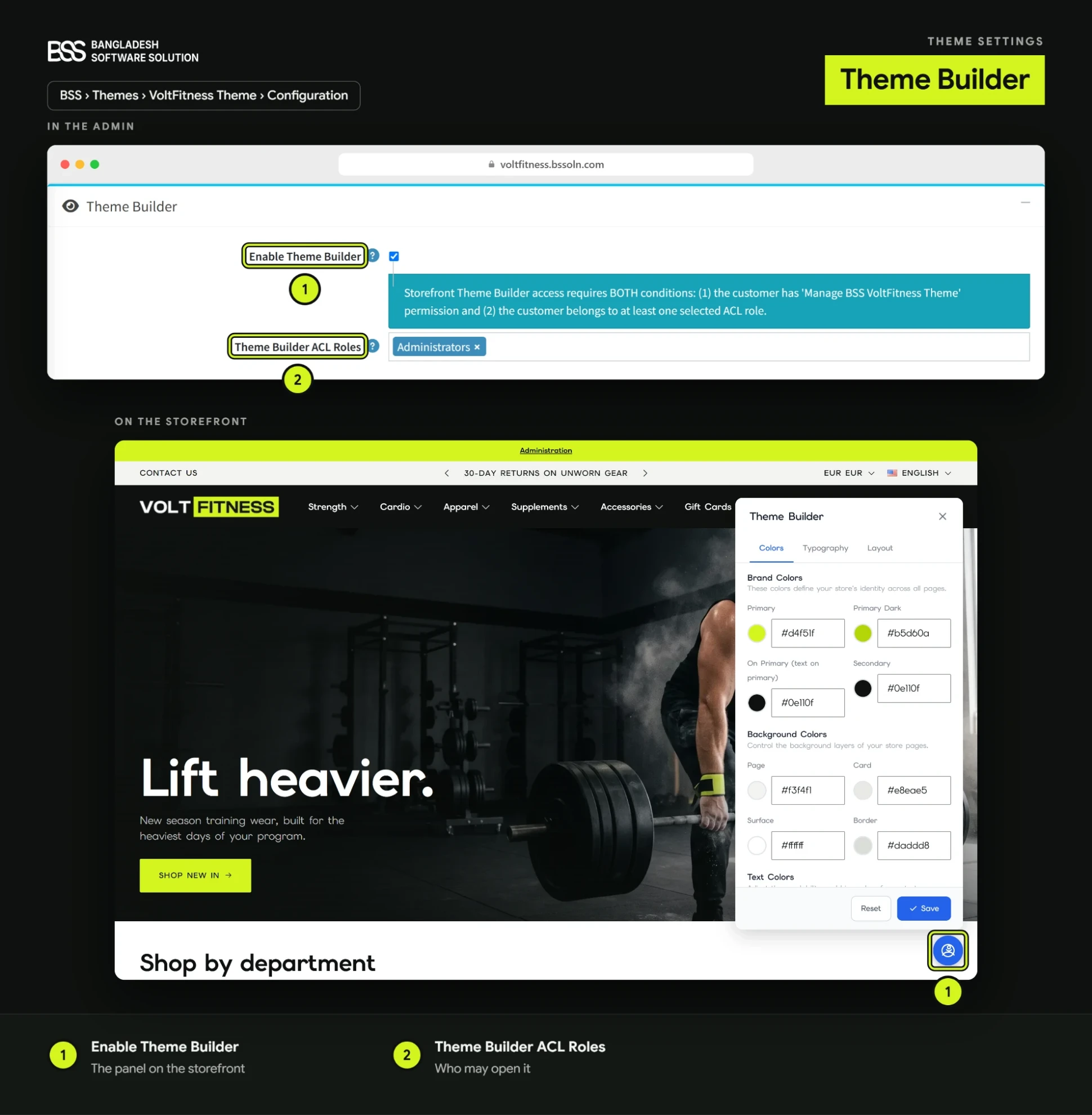
The Theme Builder is a floating panel on the storefront where you change colours, the font and the layout grids and see the result on the page you are looking at.
 (opens the full-size picture)
- Enable Theme Builder (1)
- Shows the Theme Builder button on the storefront for the people allowed to use it.
- Theme Builder ACL roles (2)
- The customer roles that can open it. A customer needs both: one of these roles and the Manage BSS VoltFitness Theme permission.
Layout
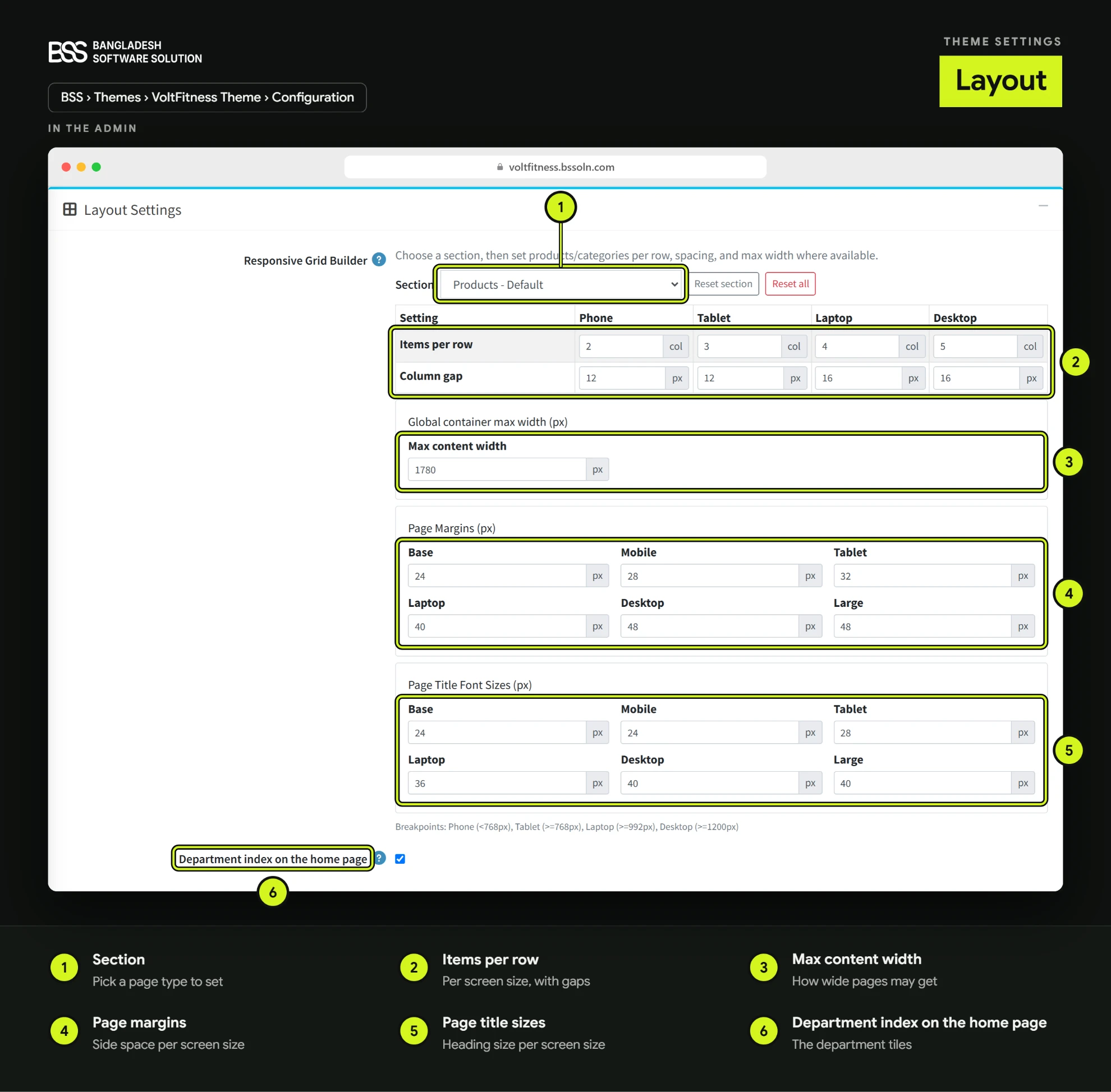
The Responsive Grid Builder sets the grids per section and per screen size. Pick a section from the list (1), such as Products - Default, then set its values.
 (opens the full-size picture)
- Items per row and column gap (2)
- For phone, tablet, laptop and desktop. Phone is below 768 px, tablet from 768 px, laptop from 992 px and desktop from 1200 px.
- Max content width (3)
- The widest the page content grows, in pixels.
- Page margins (4)
- The space at the left and right of the page for each screen size, from base to large.
- Page title font sizes (5)
- The size of page titles for each screen size.
- Department index on the home page (6)
- Shows nopCommerce's home page categories as a ruled department list. Turn it off to keep only the Anywhere Carousels department tiles, which read the same Show on home page categories.
- Reset section, Reset all
- Return one section, or every section, to the theme's values.
Catalog pages
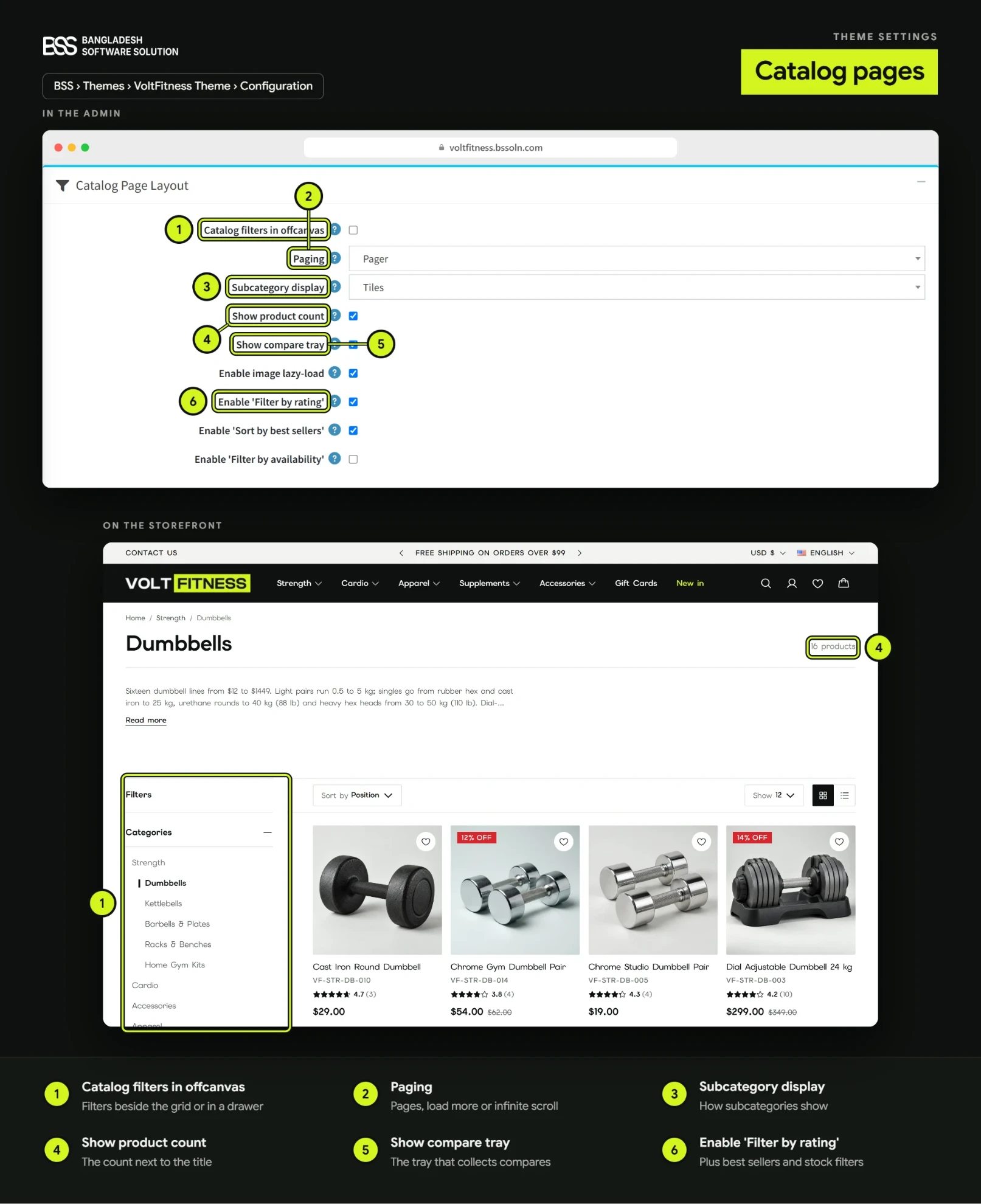
These apply to category, manufacturer, vendor, product tag, search and new products pages.
 (opens the full-size picture)
- Catalog filters in offcanvas (1)
- Shows the filters in a drawer on every screen size instead of a sidebar.
- Paging (2)
- Pager shows numbered pages. Load more adds a button that appends the next page. Infinite loads the next page as the shopper scrolls. The numbered pager stays in the page for search engines either way.
- Subcategory display (3)
- Tiles shows picture tiles above the products, Chips a single row of small chips that scrolls sideways, Off hides them.
- Show product count (4)
- The number of products beside the page title. It updates as the shopper filters.
- Show compare tray (5)
- A bar at the bottom of the screen once a product is added to compare, with Compare now and Clear list. It shows only while product comparison is on.
- Filter by rating (6)
- Adds a customer rating filter, such as 4 stars and up.
- Enable image lazy-load
- Lets the browser load images below the screen later. Product page images always load straight away.
- Sort by best sellers
- Adds Best sellers to the sort list, ordered by total quantity sold.
- Filter by availability
- Adds an availability filter. Choose which options it offers: In stock, Out of stock, Pre-order and Call for price.
Product pages
 (opens the full-size picture)
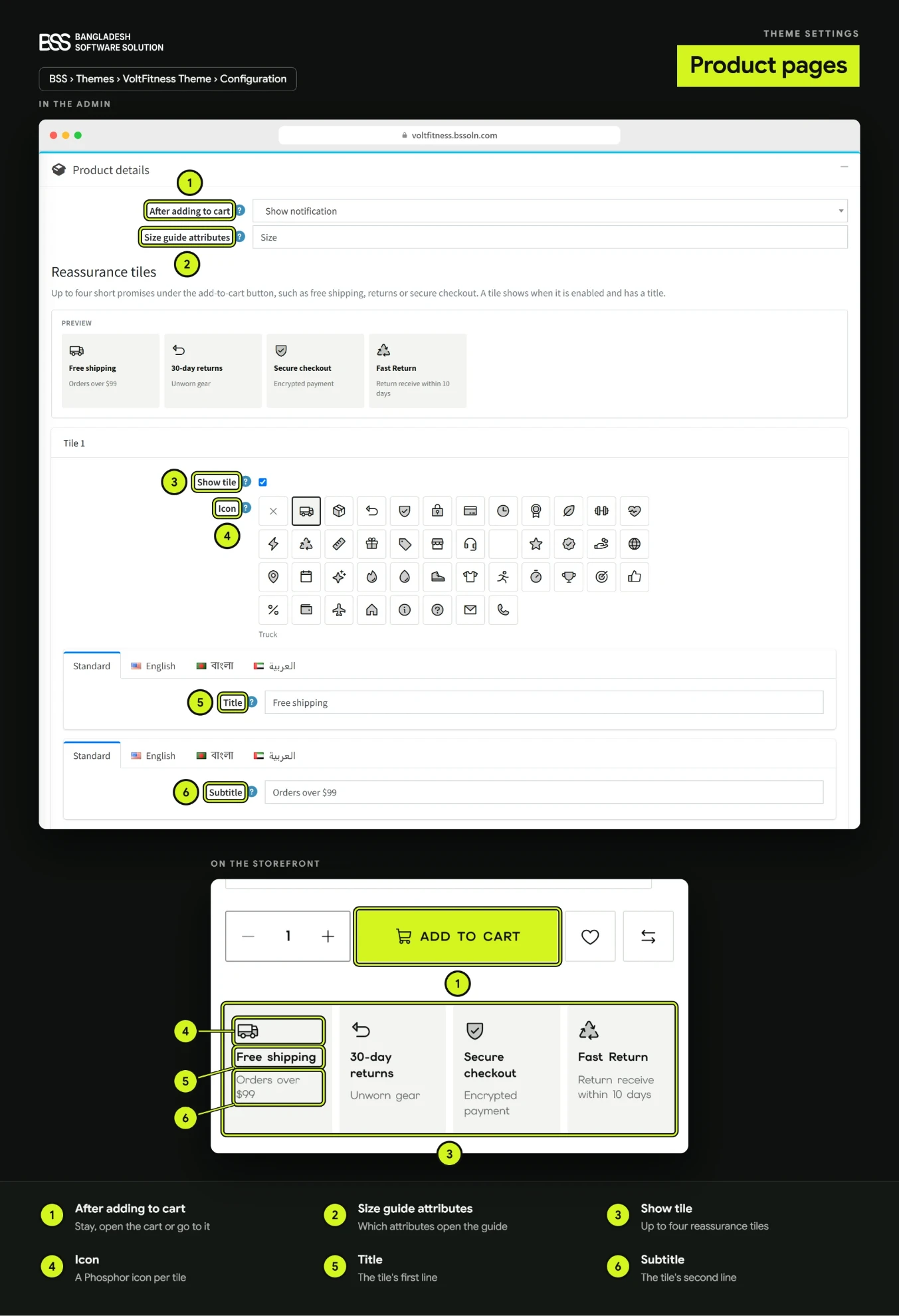
- After adding to cart (1)
- Show notification shows the success message. Open flyout cart opens the side cart instead.
- Size guide attributes (2)
- Product attribute names, separated by commas, that get a Size guide link, for example Size, Shoe size. See how the size guide works for where its text comes from.
- Reassurance tiles (3 to 6)
- Up to four short promises under the Add to cart button, such as free shipping, returns or secure checkout. Each tile has Show tile (3), an Icon (4), a Title (5) and an optional Subtitle (6), and the texts can be translated per language. A tile shows when it is on and has a title.
How the size guide works
Size guides are mainly managed in nopCommerce itself, with the product attribute's own Description. Go to CatalogAttributesProduct attributes, edit the attribute named in Size guide attributes (for example Size) and write the guide in its Description, such as a table of chest, waist and hip measurements. Every product with that attribute then shows a Size guide link beside it, and the link opens that text. This is all most stores need.
The theme's size guide topics are only for an attribute whose Description is empty. They let one attribute, such as Size, open a different guide in each category: a leggings chart in apparel and a glove chart in accessories. The theme picks the first of these that is published and has text:
VoltFitnessSizeGuide-{category}for the product's own category.{category}is the category's SEO name, from CatalogCategories, the category, then Search engine friendly page name on its SEO tab. A Leggings category with the SEO nameleggingsusesVoltFitnessSizeGuide-leggings.The same name for each parent category, nearest first. A product in Apparel, then Women, then Leggings tries
-leggings, then-women, then-apparel, so one guide on Apparel covers every apparel category below it.VoltFitnessSizeGuide, the store-wide guide, but only while the store has no category guide at all. Once you publish one category guide, products in other categories no longer fall back to the store-wide one, so a protein tub with a Size attribute never opens a clothing chart.
Create a category guide in Content managementTopics (pages) with Add new: type the system name exactly, tick Published, then write the guide in the body. Its title becomes the heading of the size guide window.
Icons for the tiles
Pick one of these in a tile's Icon list. They are Phosphor icons, bundled with the theme and drawn in the duotone style. Choose No icon for a tile with text only.
See each icon at phosphoricons.com.
Motion and notifications
 (opens the full-size picture)
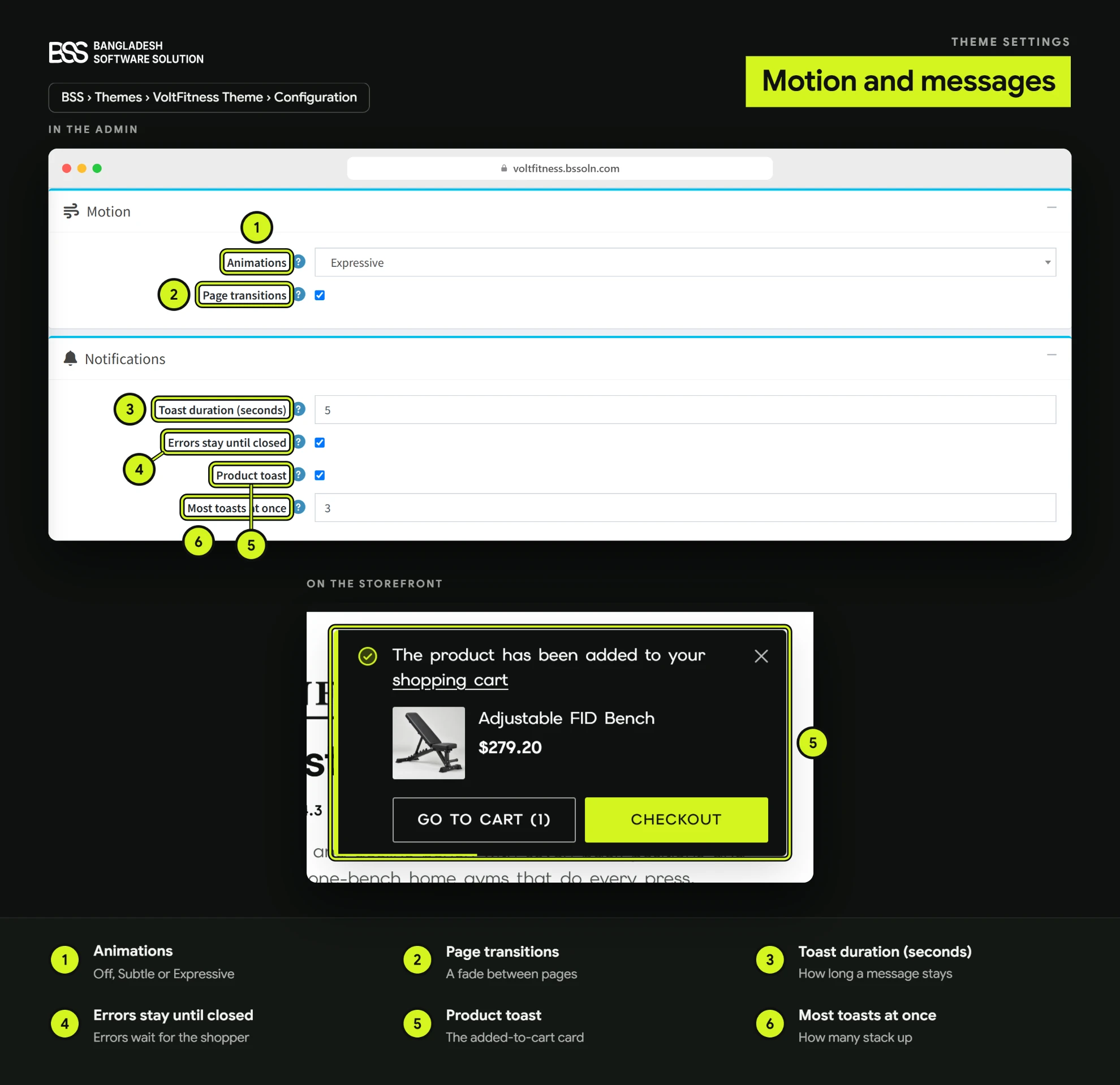
- Animations (1)
- Off has no scripted motion. Subtle adds home page headline and grid reveals, menu and cart feedback and button presses. Expressive also animates hero slide changes and the image that flies to the cart. Animation scripts load only after the page has loaded, and shoppers whose device asks for reduced motion never get them.
- Page transitions (2)
- Fades between pages with the browser's View Transitions. Navigation is never slowed down, and browsers without support simply load the next page.
- Toast duration (3)
- How long success, warning and info toasts stay, from 2 to 30 seconds. Hovering or focusing a toast holds it.
- Errors stay until closed (4)
- Keeps error toasts on screen until the shopper closes them.
- Product toast (5)
- After add to cart, wishlist or compare, shows a toast with the product and a link to the cart, wishlist or comparison. Turn it off to show the confirmation dialog instead.
- Most toasts at once (6)
- How many toasts can stack, from 1 to 5. When another arrives, the oldest closes.
Loader and custom CSS
 (opens the full-size picture)
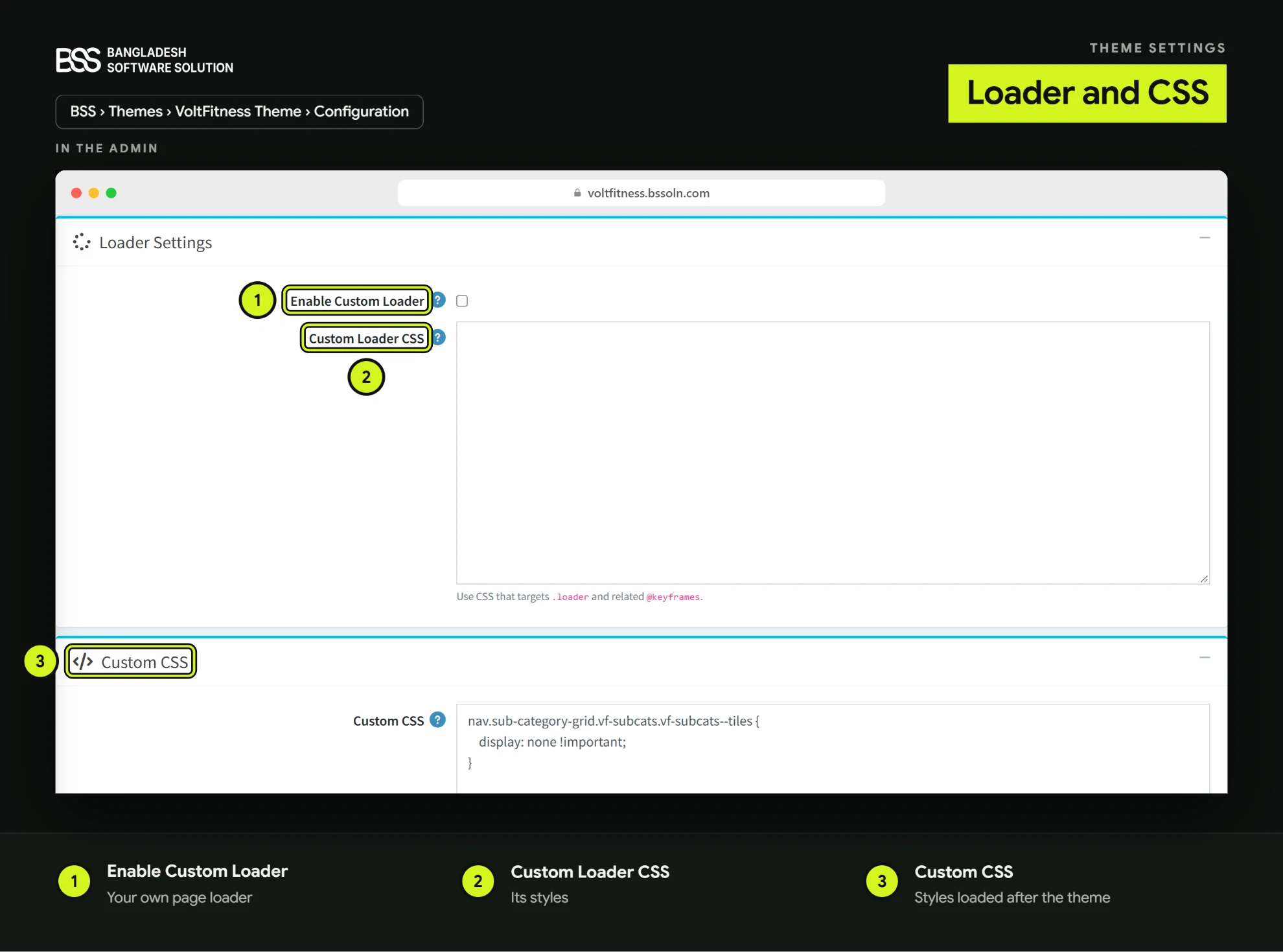
- Enable custom loader (1)
- Replaces the theme's loading animation with your own.
- Custom loader CSS (2)
- CSS for the
.loaderclass and any keyframes it uses. Sites such as css-loaders.com have ready-made loaders. - Custom CSS (3)
- Your own styles, added to the head of every storefront page after the theme's own.
03Home page
How the home page is built
Nothing on the demo home page is hard-coded. Each band is a plugin block placed in a nopCommerce widget zone, so you change its photos, products and words in the admin, and you can reorder bands by their widget zone and display order.
| On the home page | Comes from |
|---|---|
| The hero slider | Anywhere Swiper, slider Homepage Top Slider in home_page_top |
| Department tiles, New arrivals, Trending now, deals, brands and reviews | Anywhere Carousels, one carousel each |
| The morning session story, the kits deck, Train at home, Shop by goal, delivery and stats | AnyWhere Component, one component each, edited in the Visual Editor |
| The department list | nopCommerce's home page categories, switched in Layout |
| Store news | nopCommerce news, shown on the home page |
Hero slider
The hero is a slider from BSS Anywhere Swiper: BSSPluginsAnywhere SwiperSlider List.
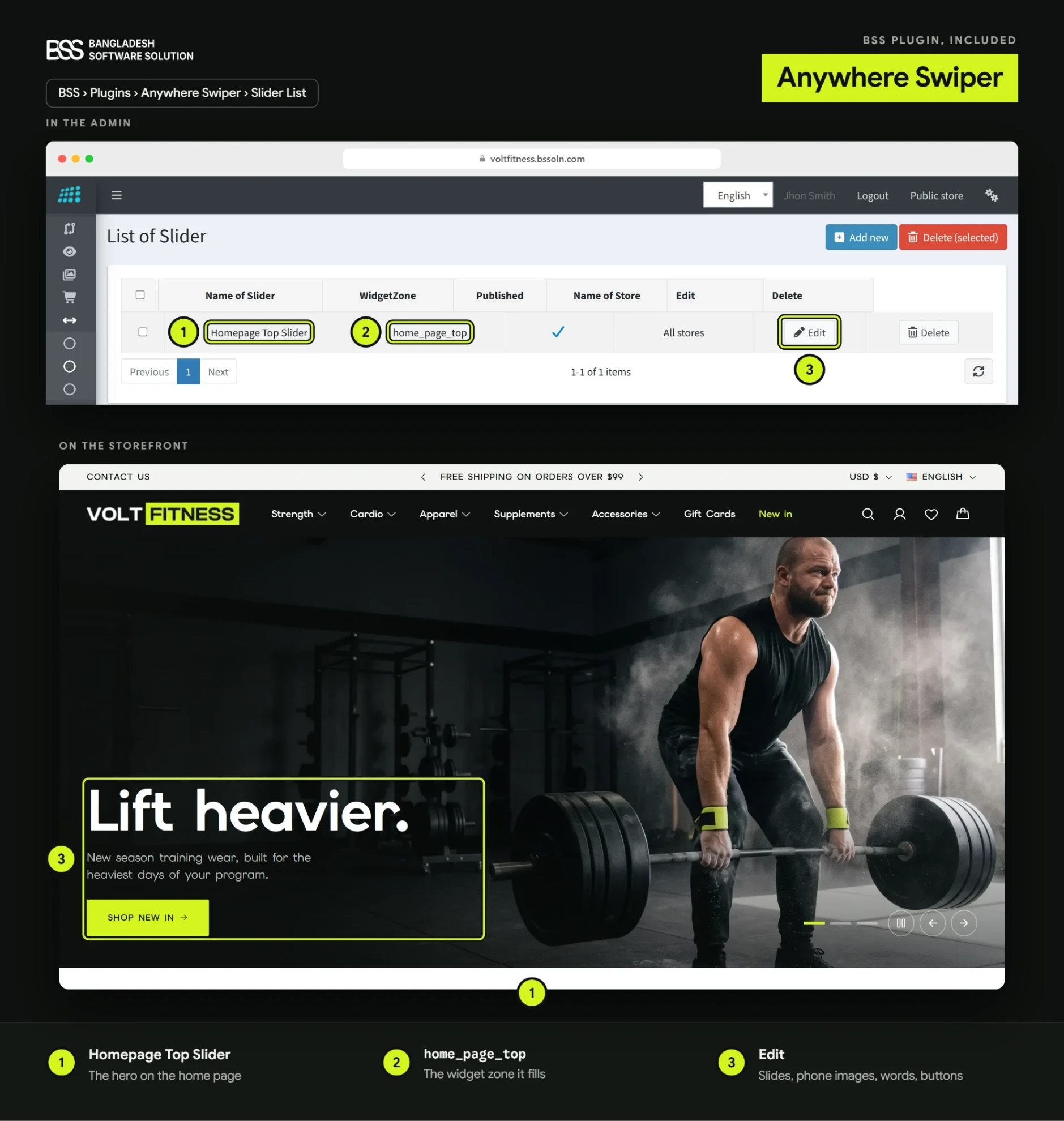 (opens the full-size picture)
- Homepage Top Slider (1)
- The slider the theme styles as its hero. Keep it in the
home_page_topwidget zone (2). - Edit (3)
- Add and order the slides. Each slide has a desktop picture and a separate phone picture, a title, a line of text and a button with its link, per language. The timed bars and the pause button come from the theme.
Product rails
Every product rail and the department tiles are carousels from BSS Anywhere Carousels: BSSPluginsAnywhere CarouselsCarousels.
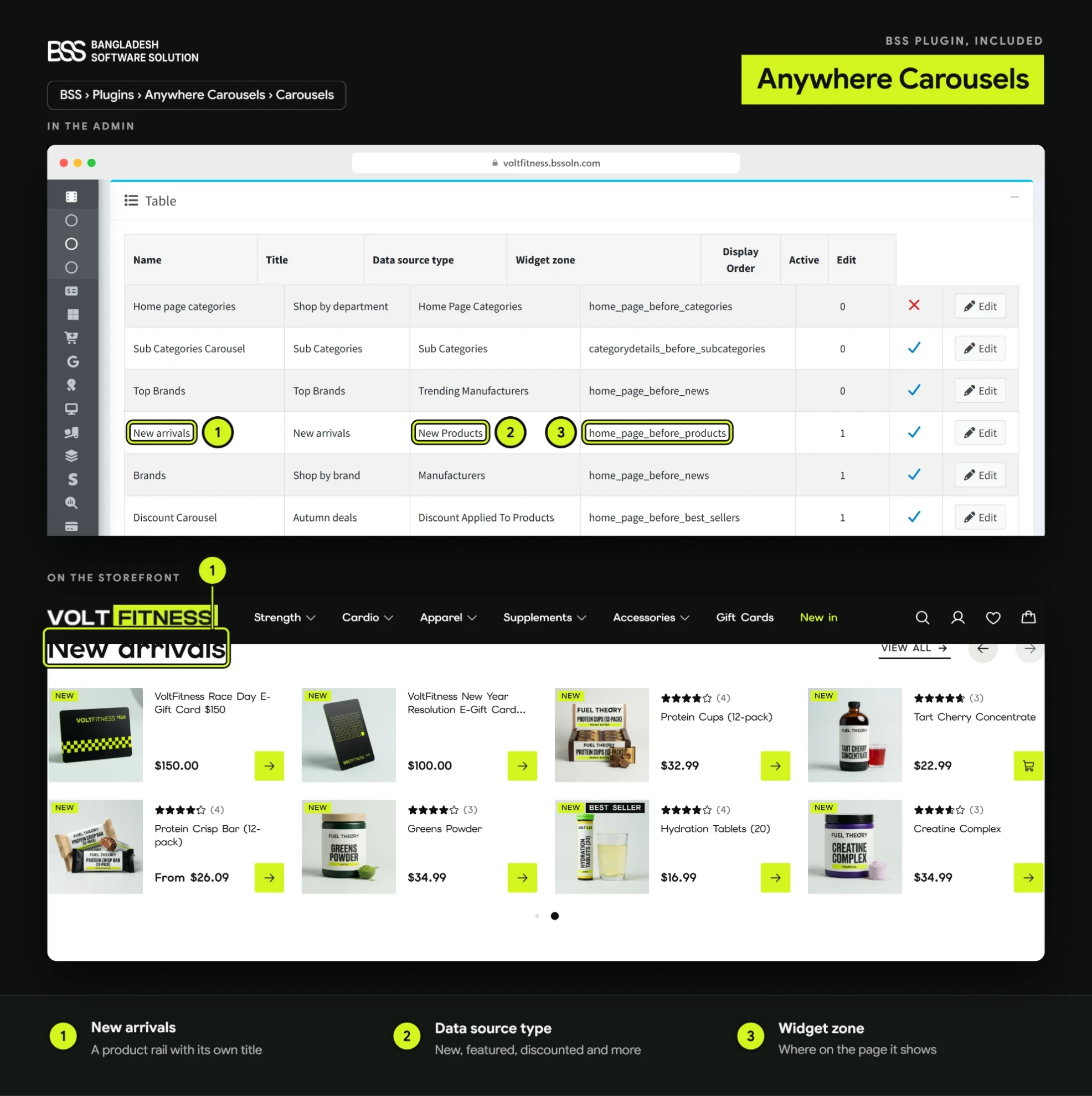 (opens the full-size picture)
- Name and title (1)
- Each carousel is one rail with its own title, such as New arrivals.
- Data source type (2)
- What the rail shows: new, featured, discounted or best-selling products, home page categories, manufacturers, reviews and more. Trending now uses category tabs, one tab per department.
- Widget zone and display order (3)
- Where the rail shows and in which order within that zone.
Stories and blocks
The story bands, the kits deck and the service blocks are components from BSS AnyWhere Component: BSSPluginsAnyWhere ComponentComponent list.
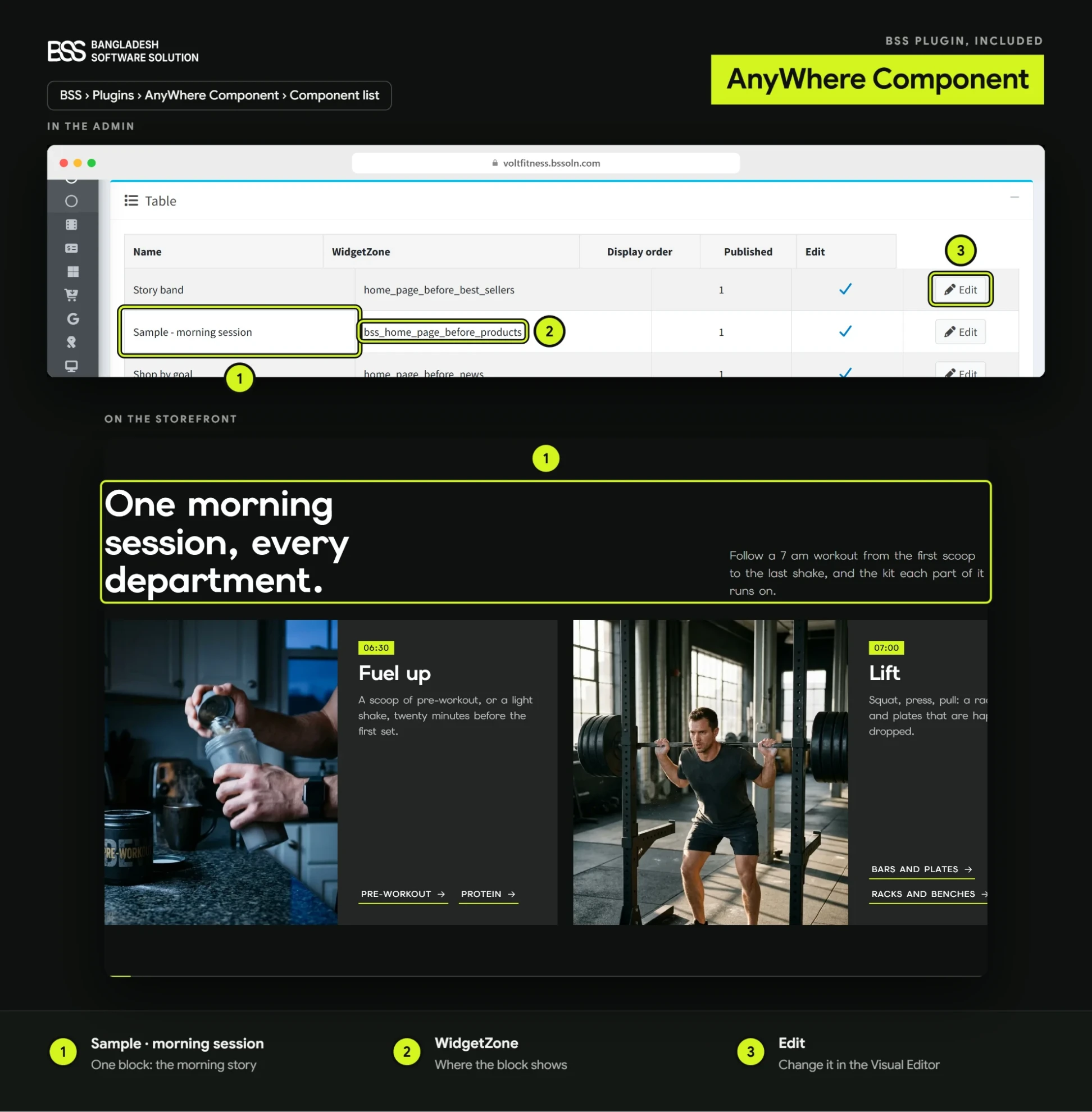 (opens the full-size picture)
- A component (1)
- One block of HTML with its own pictures and links, such as the morning session story.
- WidgetZone and display order (2)
- Where the block shows. The demo uses the home page zones and the theme's own zones such as
bss_home_page_before_products. - Edit (3)
- Opens the component. Its body opens in the Visual Editor, so you change words, pictures and links without writing HTML.
Visual Editor
BSS Visual Editor is a drag and drop builder for rich text fields. Turn it on per content area in BSSPluginsVisual EditorConfiguration, tab Content areas; those fields then get an Edit with Visual Builder button.
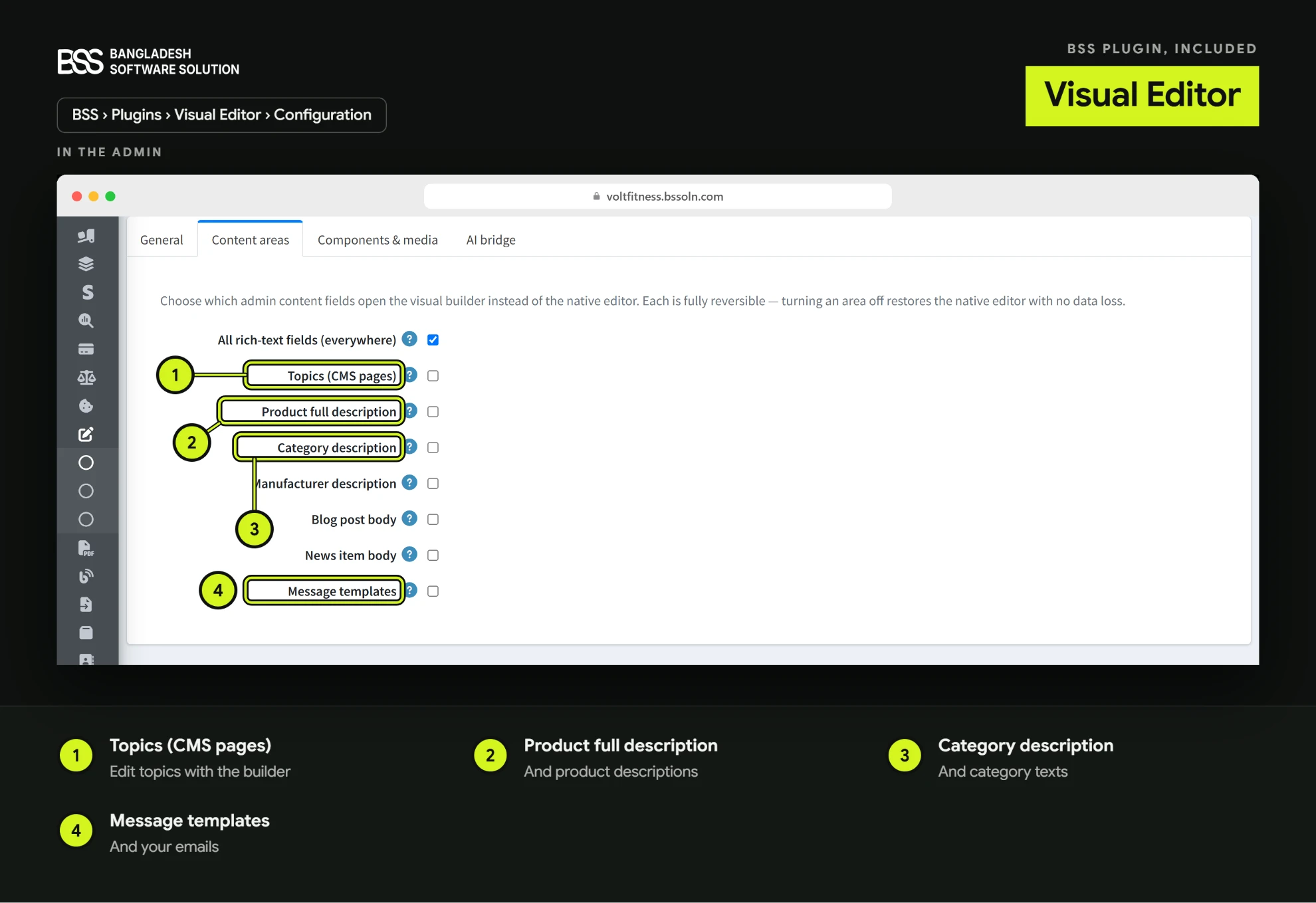 (opens the full-size picture)
- Topics (1)
- CMS pages such as About us, and the topics the theme reads.
- Product full description (2)
- Long product descriptions.
- Category description (3)
- The text at the top of category pages.
- Message templates (4)
- Your emails, including the VoltFitness branded emails.
04Plugins in VoltFitness
Product Box
The product card in every grid and rail comes from BSS Product Box.
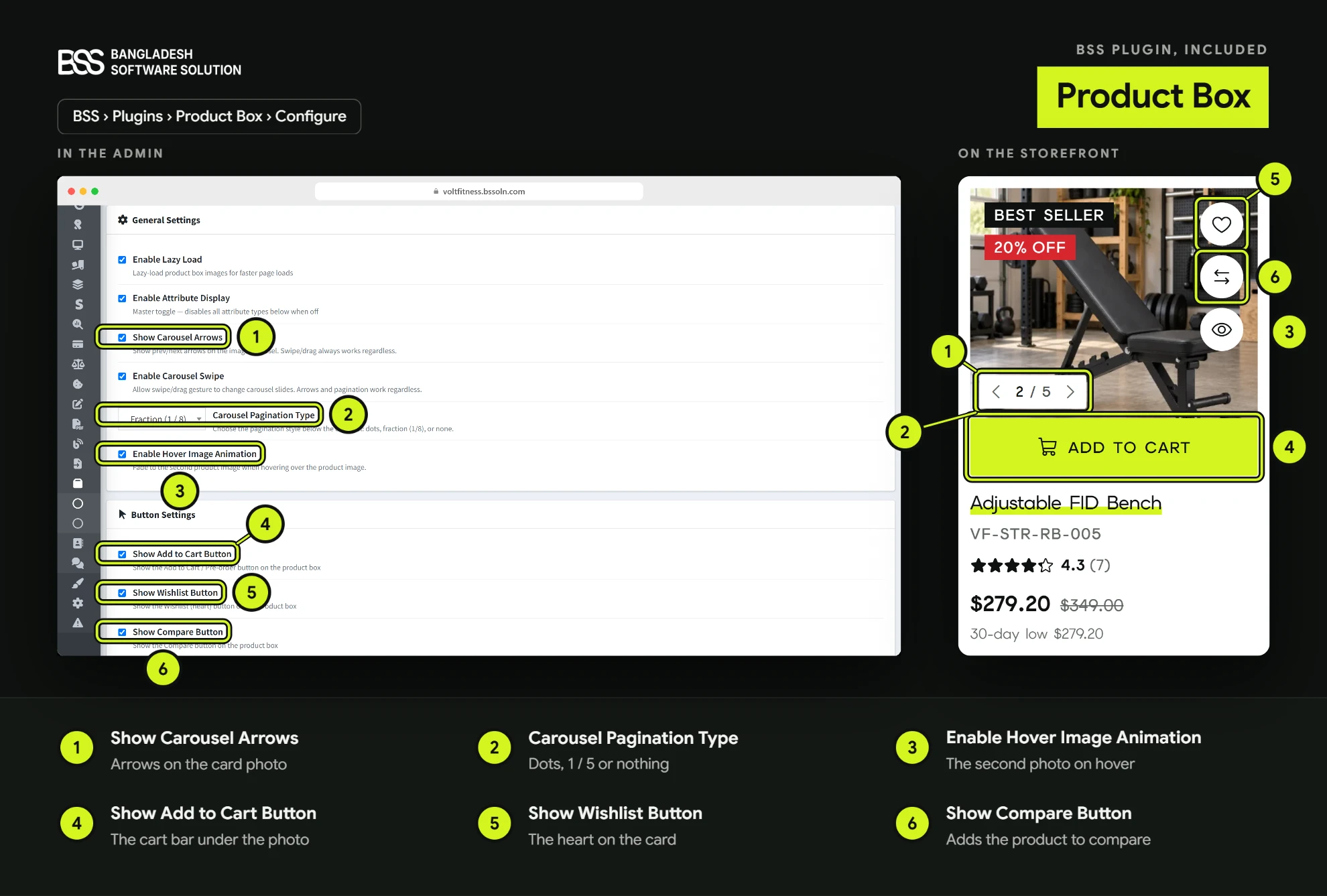 (opens the full-size picture)
- Show carousel arrows (1), Carousel pagination type (2)
- The arrows and the counter on the card photo. Pagination can be dots, a fraction such as 1 / 5, or none; swiping always works.
- Enable hover image animation (3)
- Fades to the second product photo when the pointer rests on the card.
- Show Add to cart, Wishlist and Compare buttons (4 to 6)
- The cart bar under the photo, the heart and the compare button. Below these, choose which attribute types show on the card and the order of the card's parts.
Product Ribbon
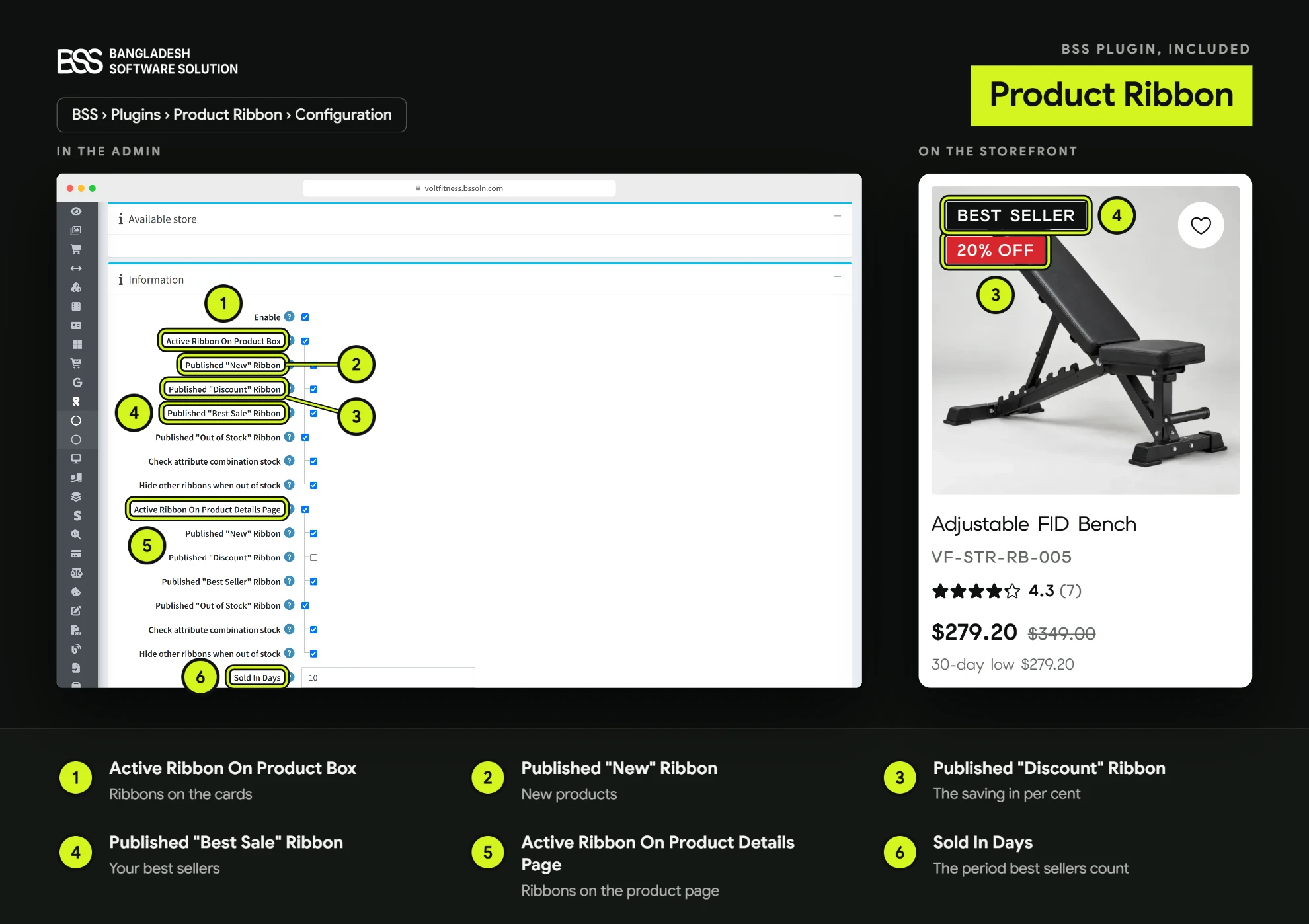 (opens the full-size picture)
- Active ribbon on product box (1)
- Shows ribbons on the product cards.
- New, Discount and Best Sale ribbons (2 to 4)
- Turn each ribbon on or off. The discount ribbon shows the saving as a percentage, worked out for you.
- Active ribbon on product details page (5)
- Shows the ribbons on the product page too.
- Sold in days (6)
- The period best sellers are counted over. Under Common, set each ribbon's text and colours per language.
QuickView
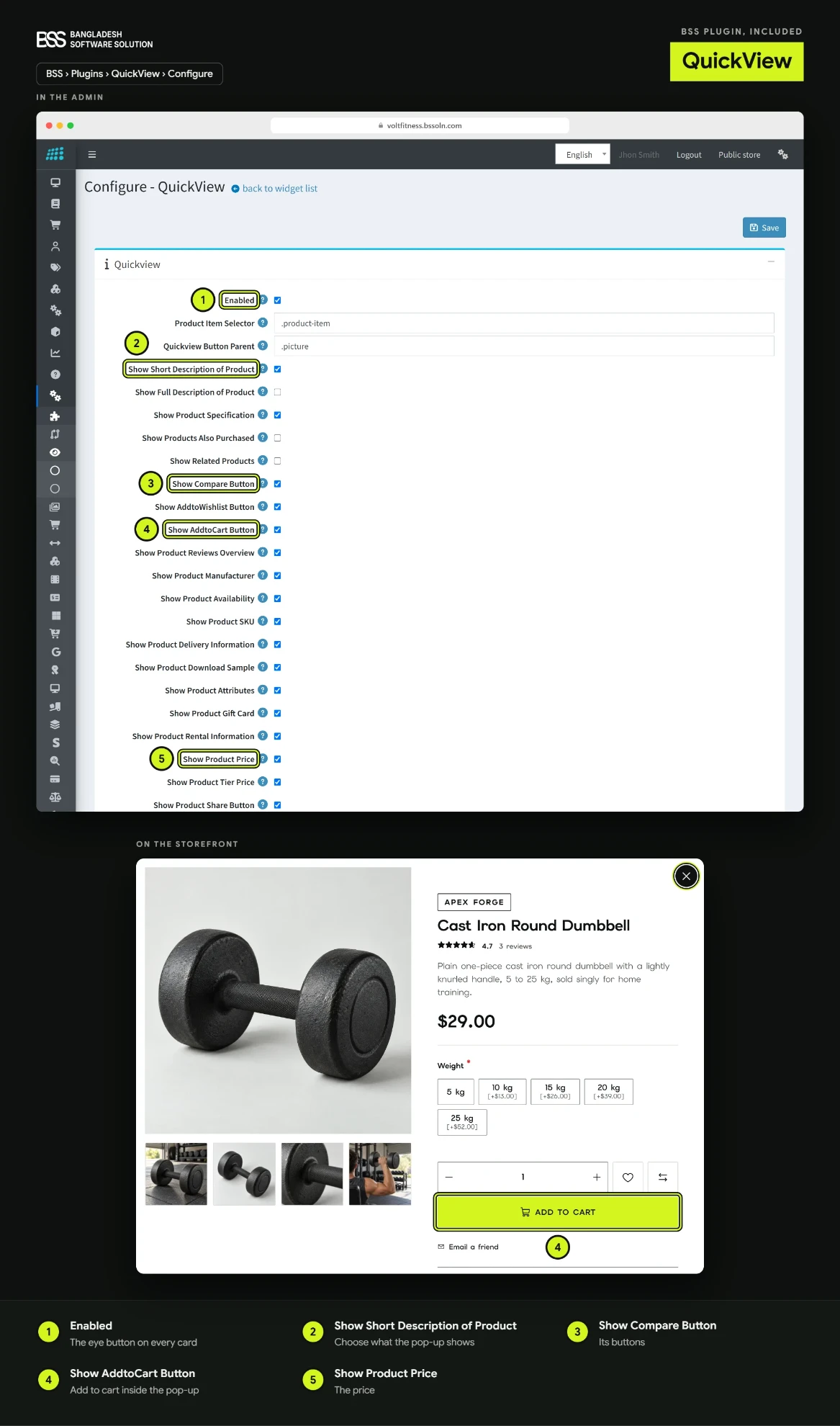 (opens the full-size picture)
- Enabled (1)
- Adds the eye button to every product card; it opens the product in a pop-up.
- What the pop-up shows (2 to 5)
- Switch each part on or off: descriptions, specifications, the compare, wishlist and Add to cart buttons, the price, reviews, stock and more.
- Use XZoom
- Zoom on the pop-up's product photo. Under Image Slider, set the thumbnails' arrows, autoplay and speed.
Product Image Gallery
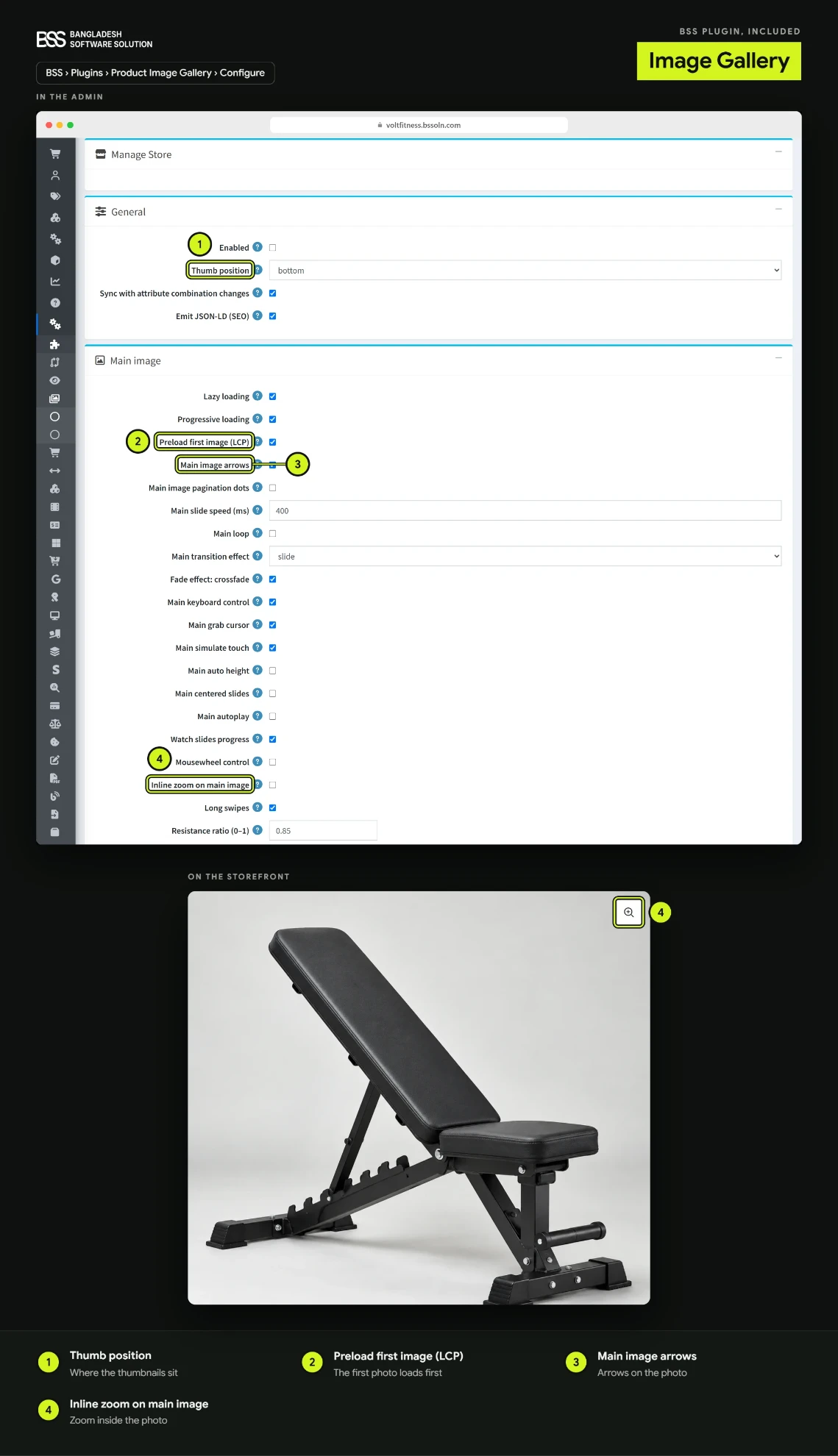 (opens the full-size picture)
- Thumb position (1)
- Where the thumbnails sit on screens where the gallery slides.
- Preload first image (2)
- Loads the first photo before anything else, so the product page shows up fast.
- Main image arrows (3)
- Arrows on the main photo.
- Inline zoom on main image (4)
- Zooms inside the photo. Further down, Hover zoom and the full-screen Lightbox have their own settings.
Product Compare
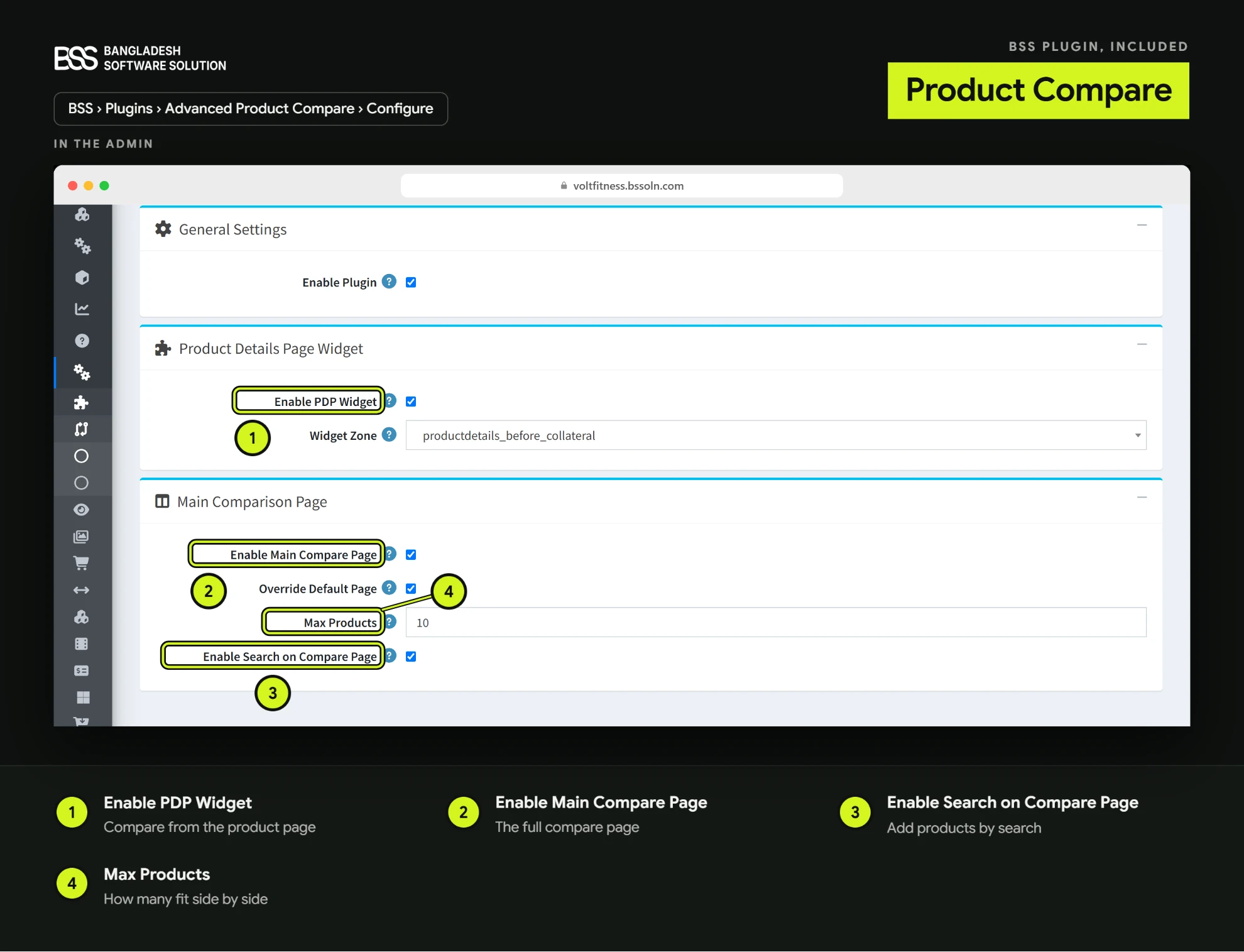 (opens the full-size picture)
- Enable PDP widget (1)
- A compare block on the product page with similar products to add.
- Enable main compare page (2)
- The full comparison page, with a switch that hides the rows that match.
- Enable search on compare page (3)
- Lets shoppers add products by name from the compare page.
- Max products (4)
- How many products fit side by side.
EU Omnibus
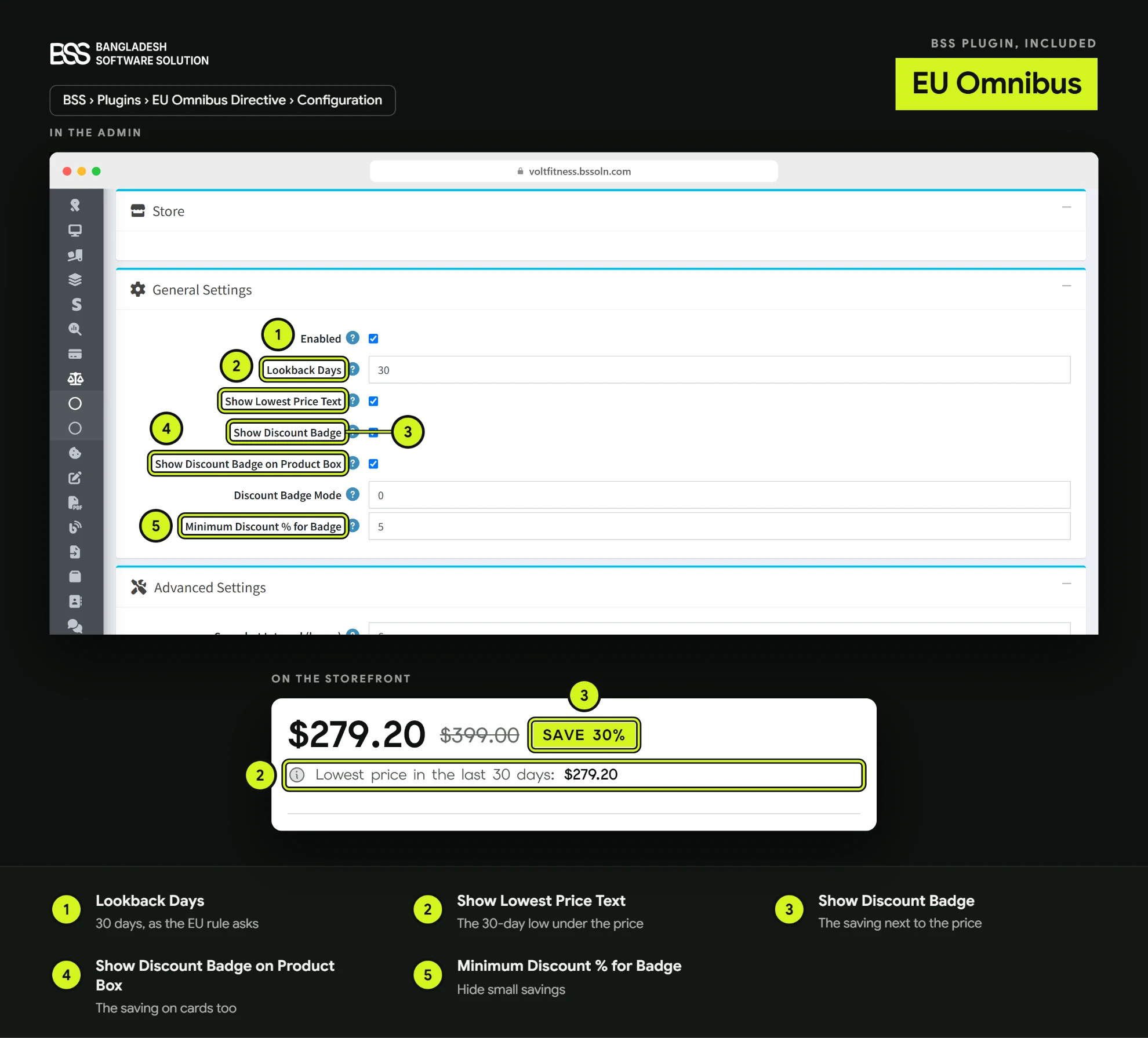 (opens the full-size picture)
- Lookback days (1)
- 30 days, as the EU rule asks.
- Show lowest price text (2)
- The lowest price of that period under every discounted price.
- Show discount badge (3), on product box (4)
- The saving next to the price, on the product page and on the cards.
- Minimum discount % for badge (5)
- Hides savings smaller than this.
Combo Products
Home gym kits are combo packages: CatalogCombo packages. Each kit is a product of its own with fixed items, optional extras and one kit price.
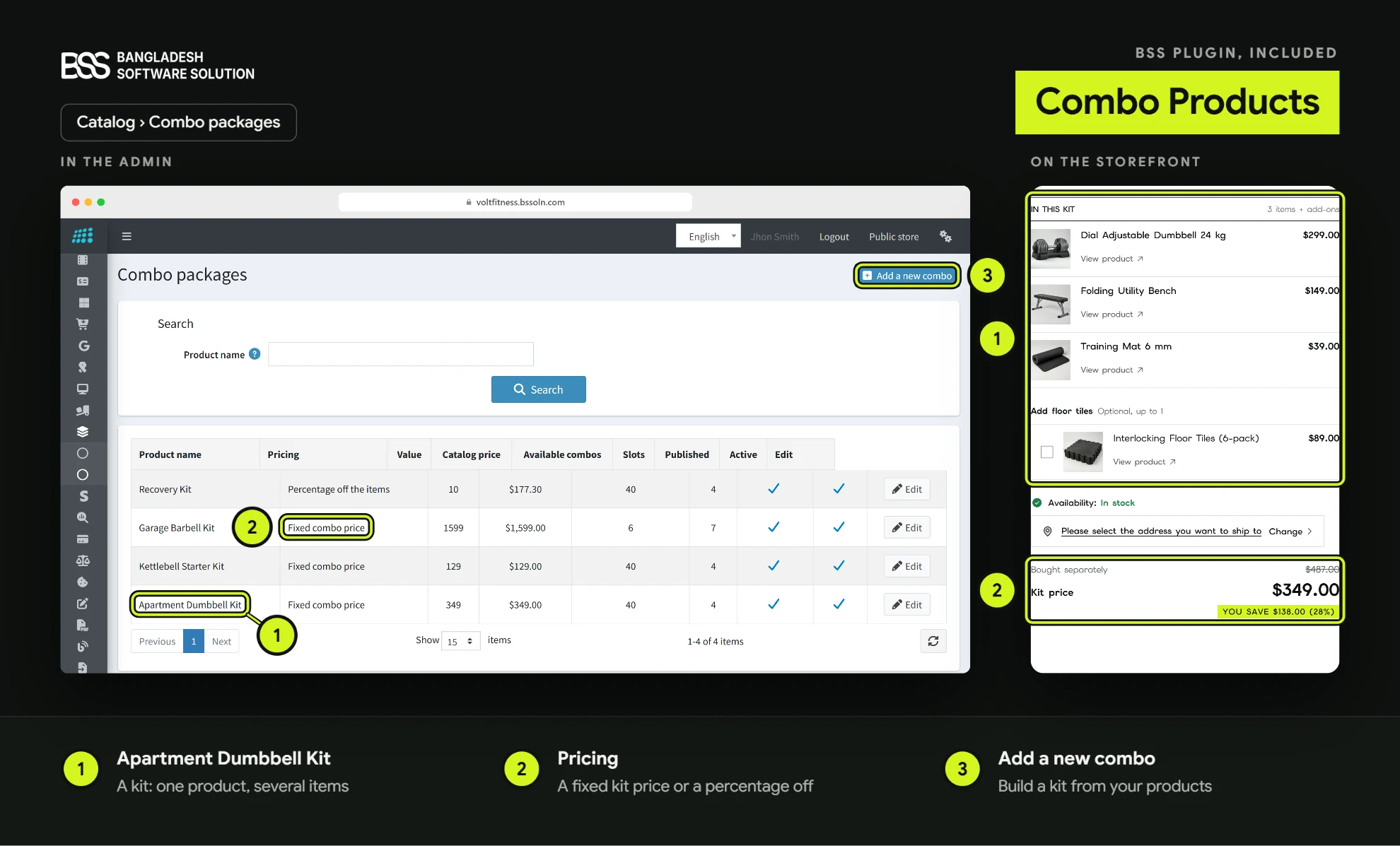 (opens the full-size picture)
- A kit (1)
- One product page that lists everything in the kit.
- Pricing (2)
- A fixed kit price, or a percentage off the items. The page shows what the kit saves against buying each item.
- Add a new combo (3)
- Builds a kit from your products: the fixed items, the slots shoppers choose from and the optional extras. The plugin's own settings, under Configuration, set the savings badge and how kits appear on orders.
One Page Checkout
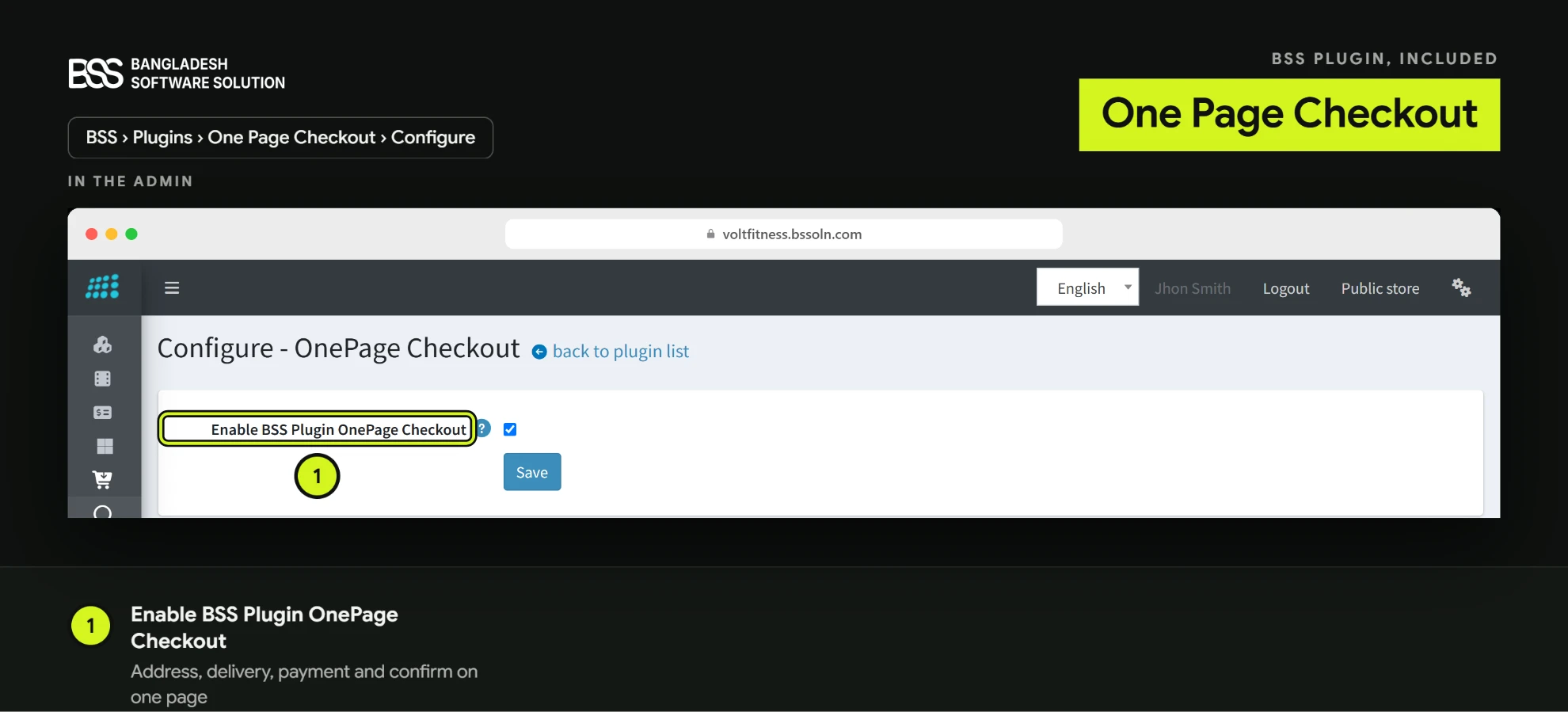 (opens the full-size picture)
- Enable BSS Plugin OnePage Checkout (1)
- Replaces nopCommerce's step-by-step checkout with one page: address, delivery, payment and the order summary. The theme styles it in three columns on a big screen and one tidy column on a phone.
Cookie Consent
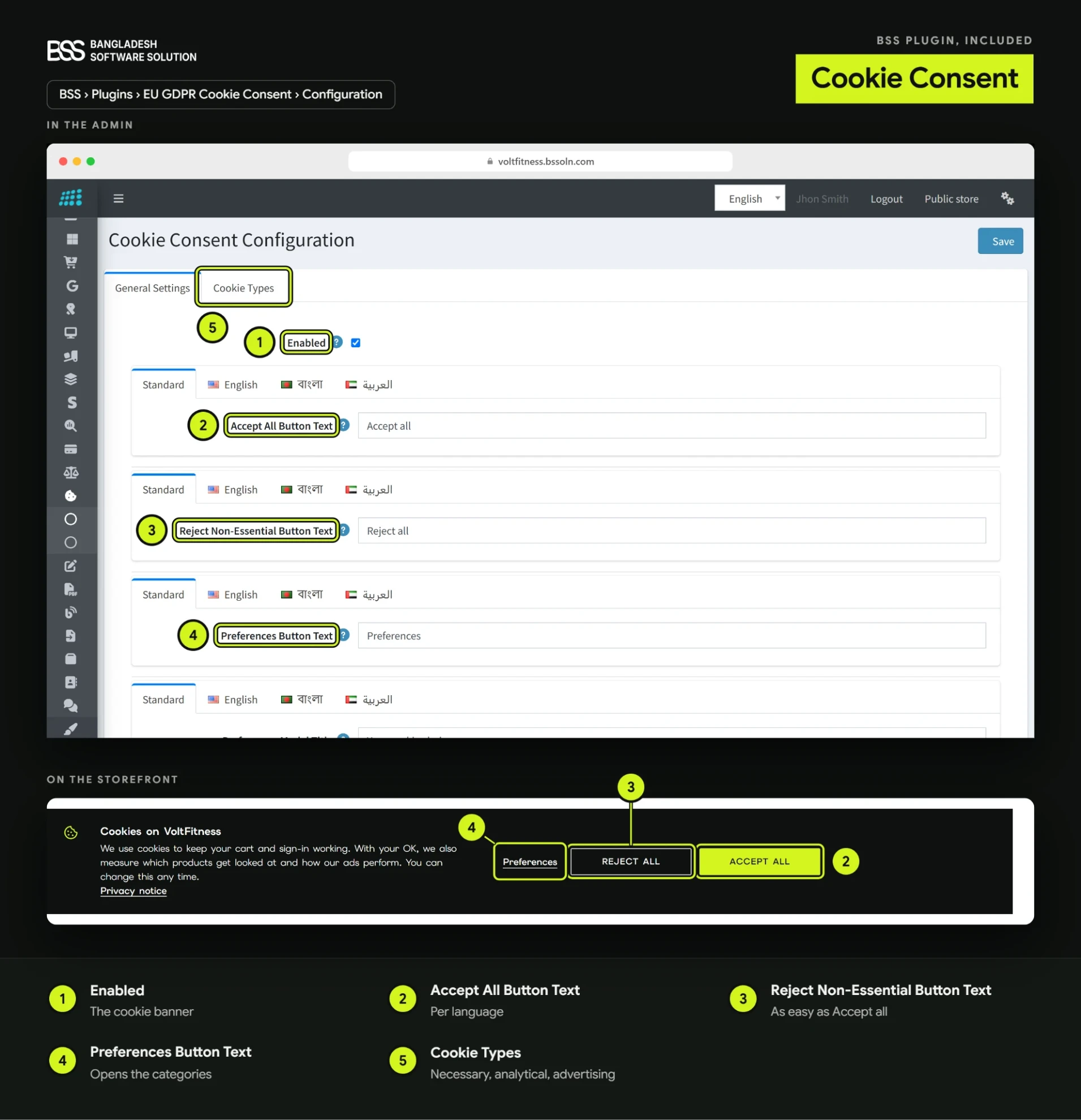 (opens the full-size picture)
- Enabled (1)
- Shows the cookie banner to new visitors.
- Button texts (2 to 4)
- Accept all, Reject non-essential and Preferences, per language. Reject weighs the same as Accept, as EU guidance asks.
- Cookie Types (5)
- The categories in the preferences window: necessary, analytical and advertising, each with its own name and description.
Google and SMS sign-in
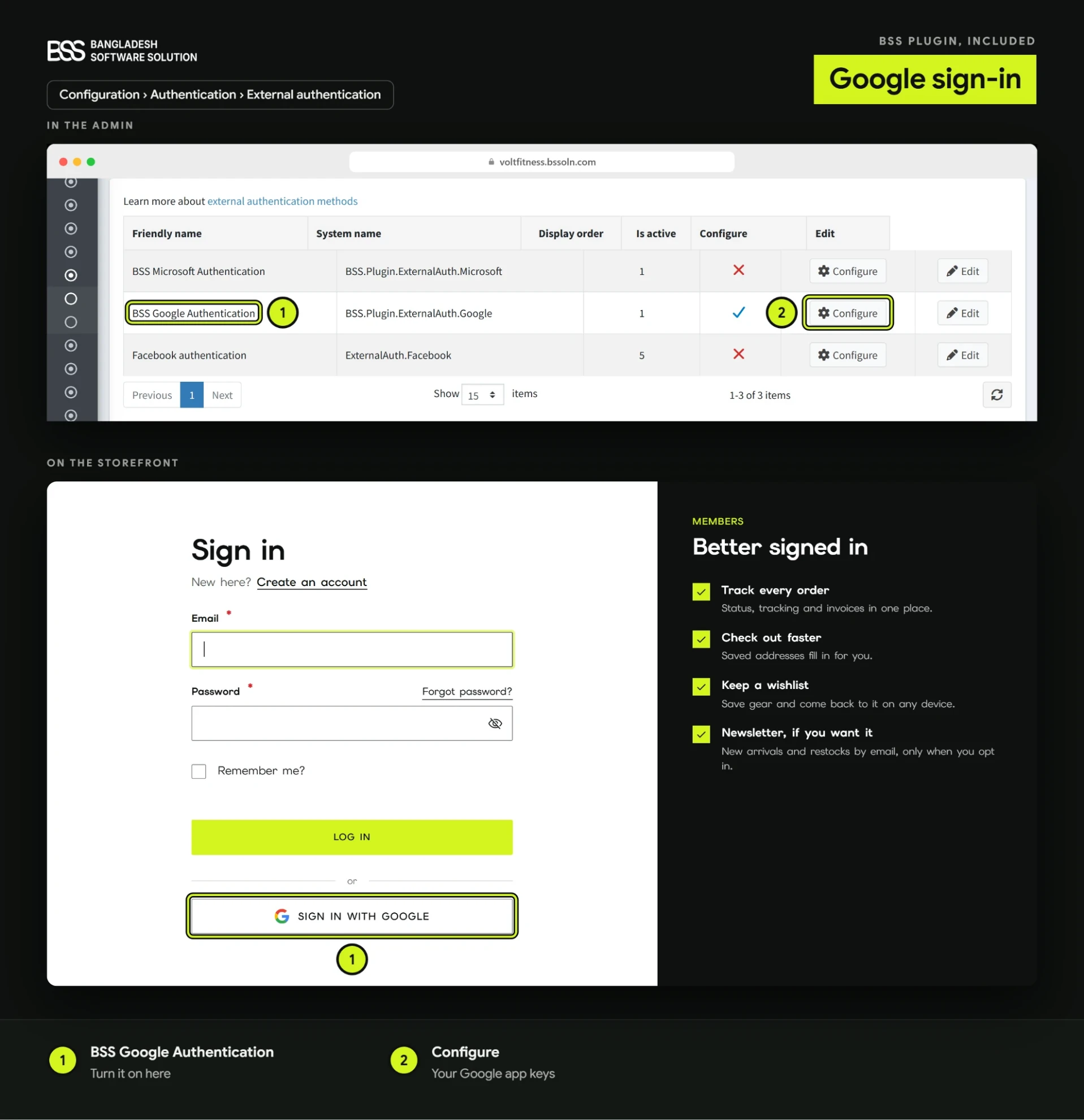 (opens the full-size picture)
- BSS Google Authentication (1)
- Turn it on in ConfigurationAuthenticationExternal authentication. The theme shows Sign in with Google under the email sign-in.
- Configure (2)
- Paste the App ID and App Secret of your Google app. The page lists the steps in Google Cloud Console.
- BSS Phone SMS Authentication
- Sign in and register with a one-time SMS code. Install it, connect an SMS gateway in its SMS Providers page, then turn it on in the same list.
Payment Change, Sendcloud Shipping and AI SEO
These work in the admin and the order flow, so the theme adds no styling of its own.
Payment Change
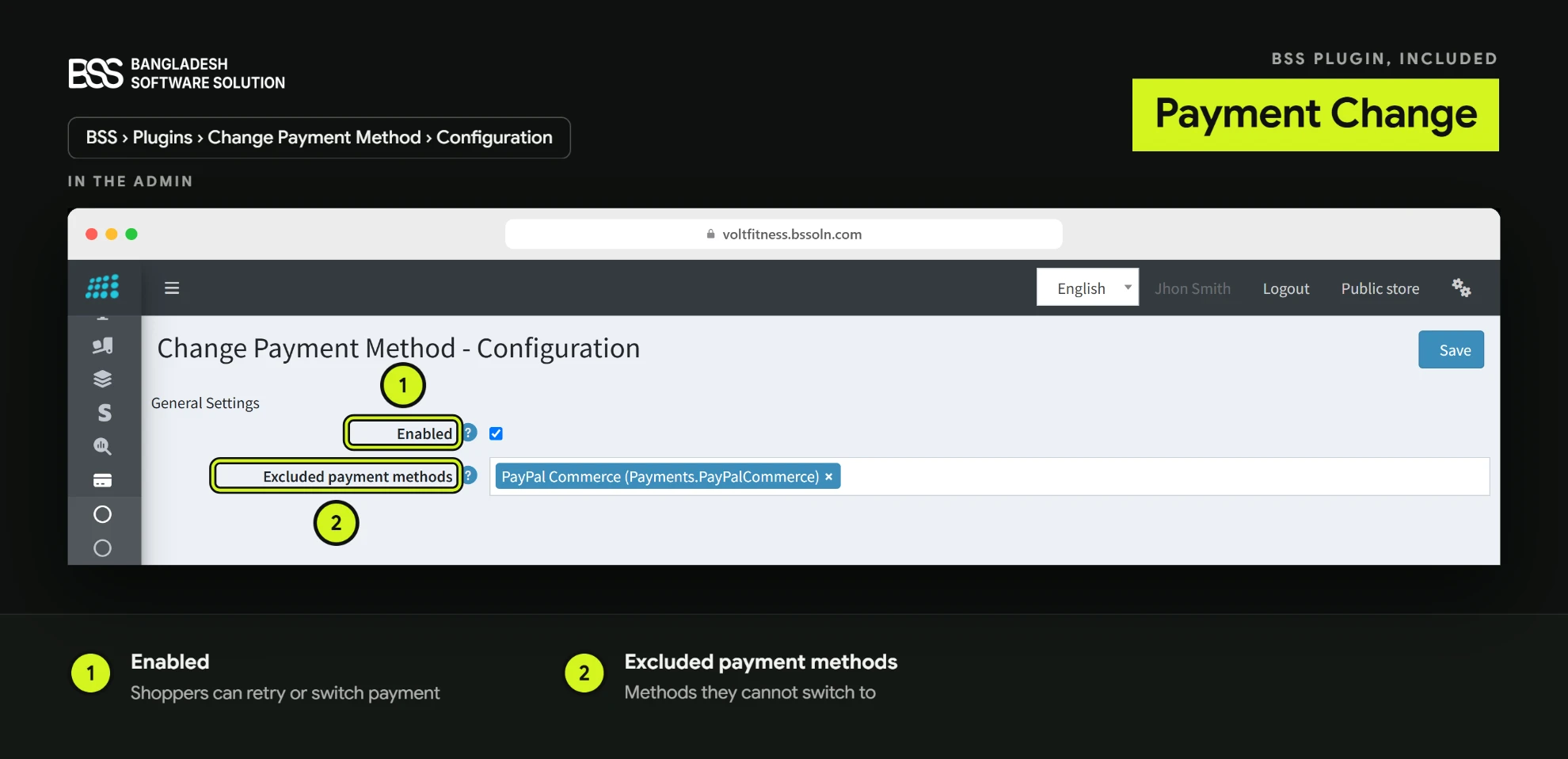 (opens the full-size picture)
- Enabled (1)
- Lets shoppers retry or switch the payment method of an unpaid order from its order details.
- Excluded payment methods (2)
- Methods they cannot switch to.
Sendcloud Shipping
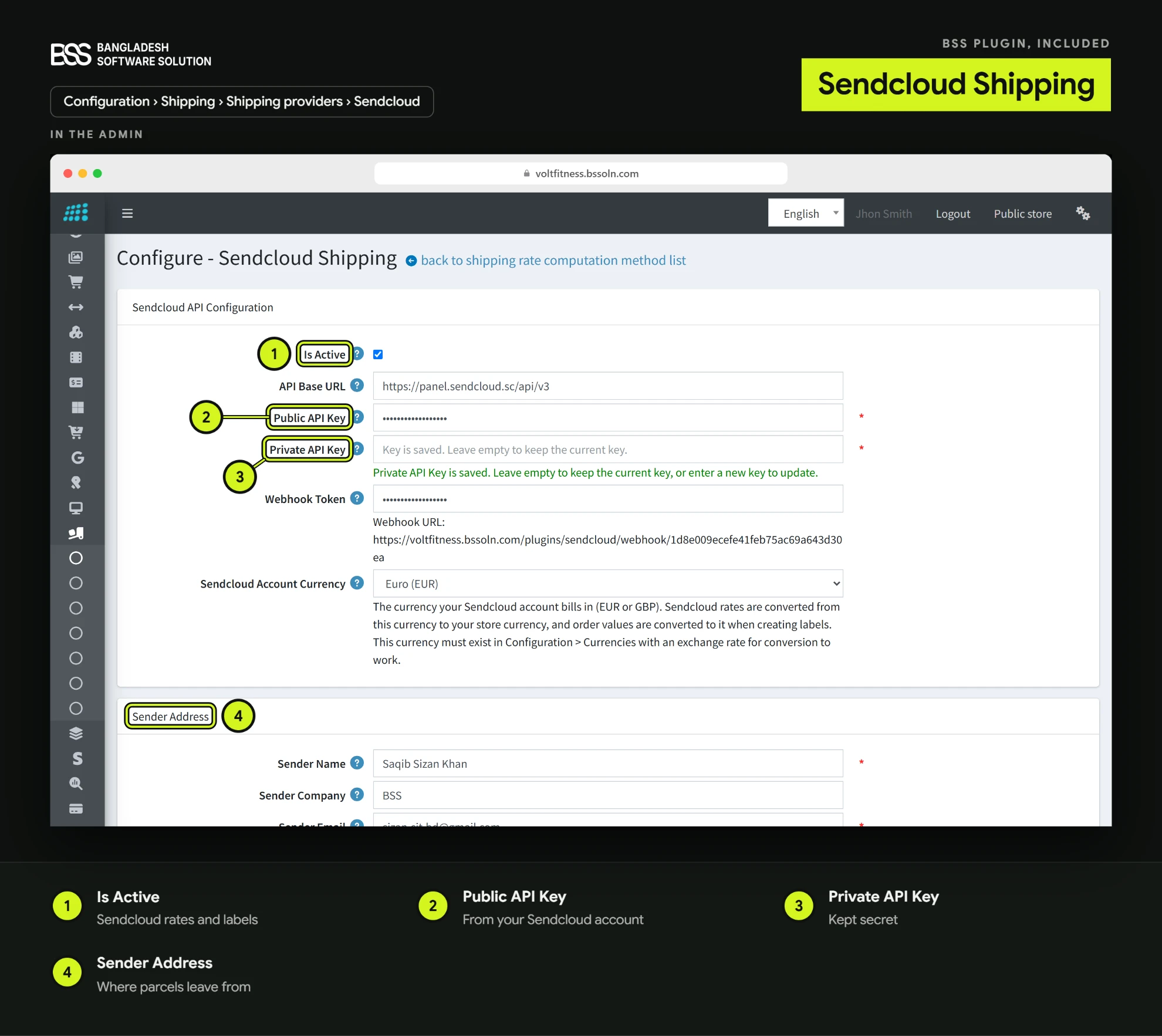 (opens the full-size picture)
- Is active (1)
- Sendcloud rates at checkout and labels for your orders.
- Public and private API keys (2, 3)
- From your Sendcloud account. Keep the private key to yourself.
- Sender address (4)
- Where your parcels leave from. Further down, set parcel defaults, service points at checkout and cash on delivery.
AI SEO Assistant
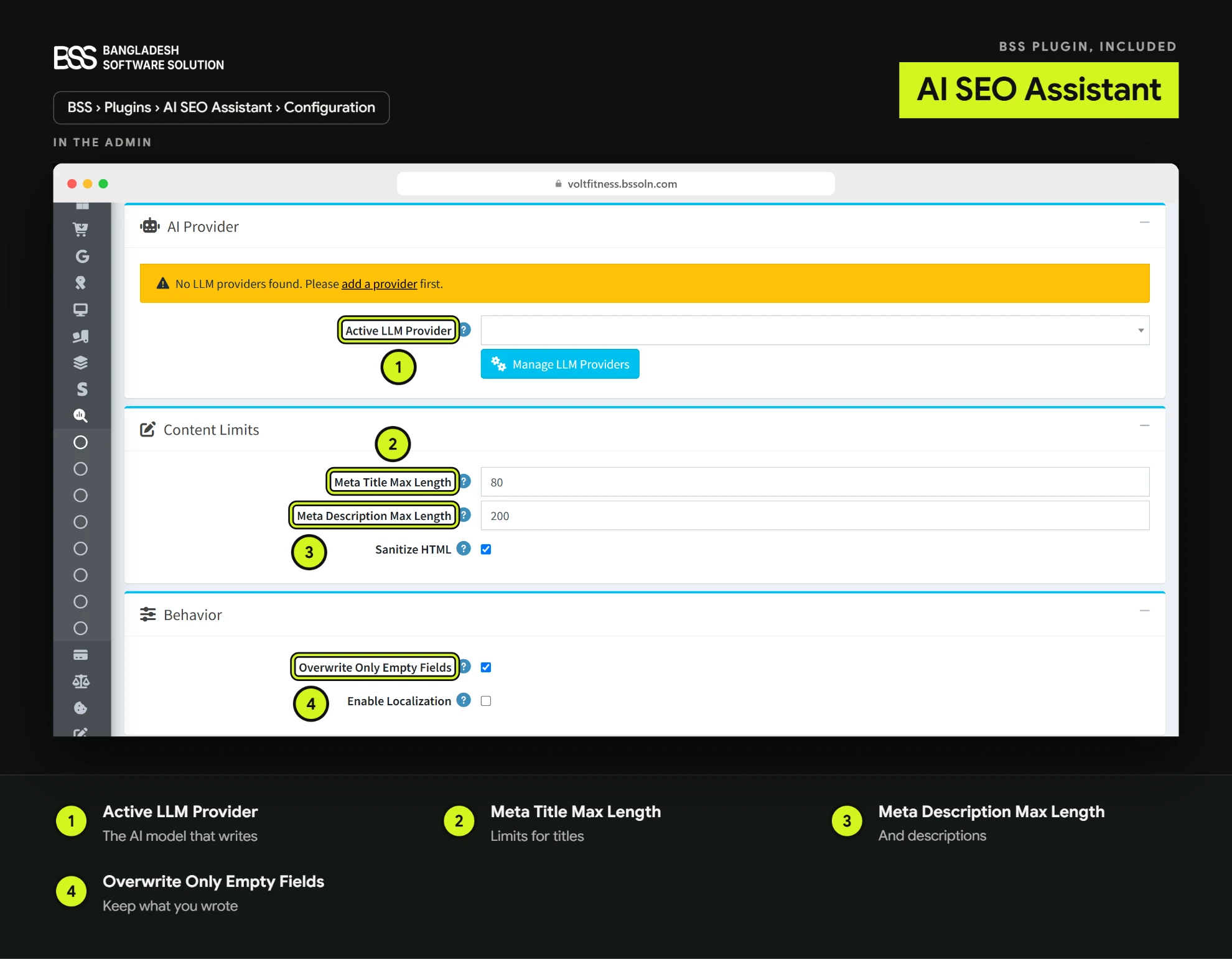 (opens the full-size picture)
- Active LLM provider (1)
- The AI model that writes. Add one under LLM Providers first.
- Meta title and description max length (2, 3)
- Limits for what it writes.
- Overwrite only empty fields (4)
- Keeps the titles and descriptions you wrote yourself.
All 18 bundled plugins
Each plugin has its own settings in BSSPlugins and its own guide. Here is what each does in VoltFitness and where to find it.
 BSS Product BoxThe product card in every grid and rail: a photo swiper, the second photo on hover, quick add and the card buttons.BSSPluginsProduct BoxConfigureGuide for BSS Product Box
 BSS Advanced Product CompareThe compare page, with a switch that hides matching rows and a search to add products.BSSPluginsAdvanced Product CompareConfigureGuide for BSS Advanced Product Compare
 BSS Anywhere ComponentHTML blocks in any widget zone: department tiles, the home page stories and calls to action.BSSPluginsAnyWhere ComponentComponent listGuide for BSS Anywhere Component
 BSS Visual EditorA drag and drop editor for topics, product descriptions and components, with an MCP bridge for AI assistants.BSSPluginsVisual EditorConfigurationGuide for BSS Visual Editor
- BSS Combo ProductsKits: several products sold as one, with fixed items, optional add-ons and a kit price.BSSPluginsCombo ProductsCombo packagesSet up from its configuration page; no separate guide.
 BSS Payment ChangeLets shoppers retry or switch the payment method of an unpaid order.BSSPluginsChange Payment MethodConfigurationGuide for BSS Payment Change
 BSS Product RibbonSale, new, best seller and kit ribbons on cards and product pages.BSSPluginsProduct RibbonConfigurationGuide for BSS Product Ribbon
 BSS QuickViewA product pop-up from any listing, with the gallery, options and Add to cart.BSSPluginsQuickViewConfigureGuide for BSS QuickView
 BSS Product Image GalleryThe product page photo grid on desktop and swiper on phones, with zoom.BSSPluginsProduct Image GalleryConfigureGuide for BSS Product Image Gallery
 BSS Anywhere SwiperThe home page hero slider with timed bars, with separate phone images.BSSPluginsAnywhere SwiperSlider ListGuide for BSS Anywhere Swiper
 BSS Anywhere CarouselsProduct rails such as Trending, with department tabs.BSSPluginsAnywhere CarouselCarouselsGuide for BSS Anywhere Carousels
 BSS Sendcloud ShippingShipping rates, labels and a pickup point picker at checkout. Needs a Sendcloud account.BSSPluginsSendcloudSetup GuideGuide for BSS Sendcloud Shipping
 BSS Google AuthenticationSign in with Google next to the email login. Needs your Google app keys.BSSPluginsGoogle AuthConfigurationGuide for BSS Google Authentication
 BSS One Page CheckoutAddress, shipping, payment and the order summary on one page.BSSPluginsOnePage CheckoutConfigureGuide for BSS One Page Checkout
 BSS AI SEO AssistantWrites meta titles and descriptions for products, categories, manufacturers, blog and news.BSSPluginsAI SEO AssistantConfigurationGuide for BSS AI SEO Assistant
 BSS EU Omnibus DirectiveShows the lowest price of the last 30 days next to every discount.BSSPluginsEU OmnibusConfigurationGuide for BSS EU Omnibus Directive
 BSS EU GDPR Cookie ConsentA consent banner with cookie categories, where Reject all weighs the same as Accept all.BSSPluginsCookie ConsentConfigurationGuide for BSS EU GDPR Cookie Consent
 BSS Phone SMS AuthenticationSign in and register with a one-time SMS code. Needs an SMS gateway.BSSPluginsPhone SMSSMS ProvidersGuide for BSS Phone SMS Authentication
05Content
Topics the theme reads
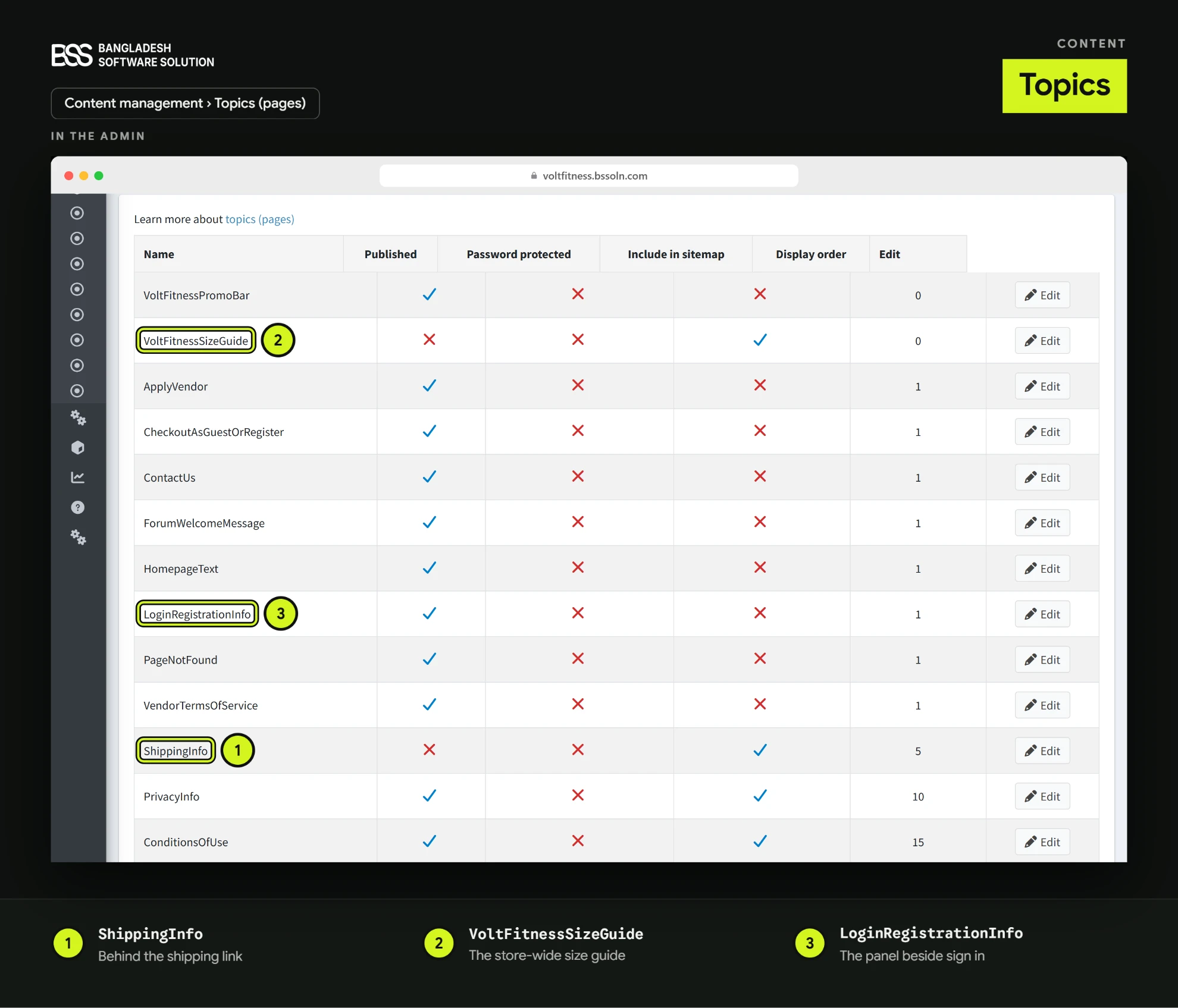
Some VoltFitness texts come from nopCommerce topics, so you edit them in Content managementTopics (pages) and translate them like any other page.
 (opens the full-size picture)
| Topic system name | What it does |
|---|---|
ShippingInfo (1) | The page behind the shipping link in the top bar. |
VoltFitnessSizeGuide (2) | The store-wide size guide, used while no category guide is published. A guide shows only while its topic is published and has text. |
VoltFitnessSizeGuide-{category} | A size guide for one category, where {category} is the category's SEO name, for example VoltFitnessSizeGuide-leggings. A product uses its own category's guide or the nearest parent's. See how the size guide works. |
LoginRegistrationInfo (3) | The panel beside the sign-in and register forms, under a banner picture when one is set. |
Branded emails
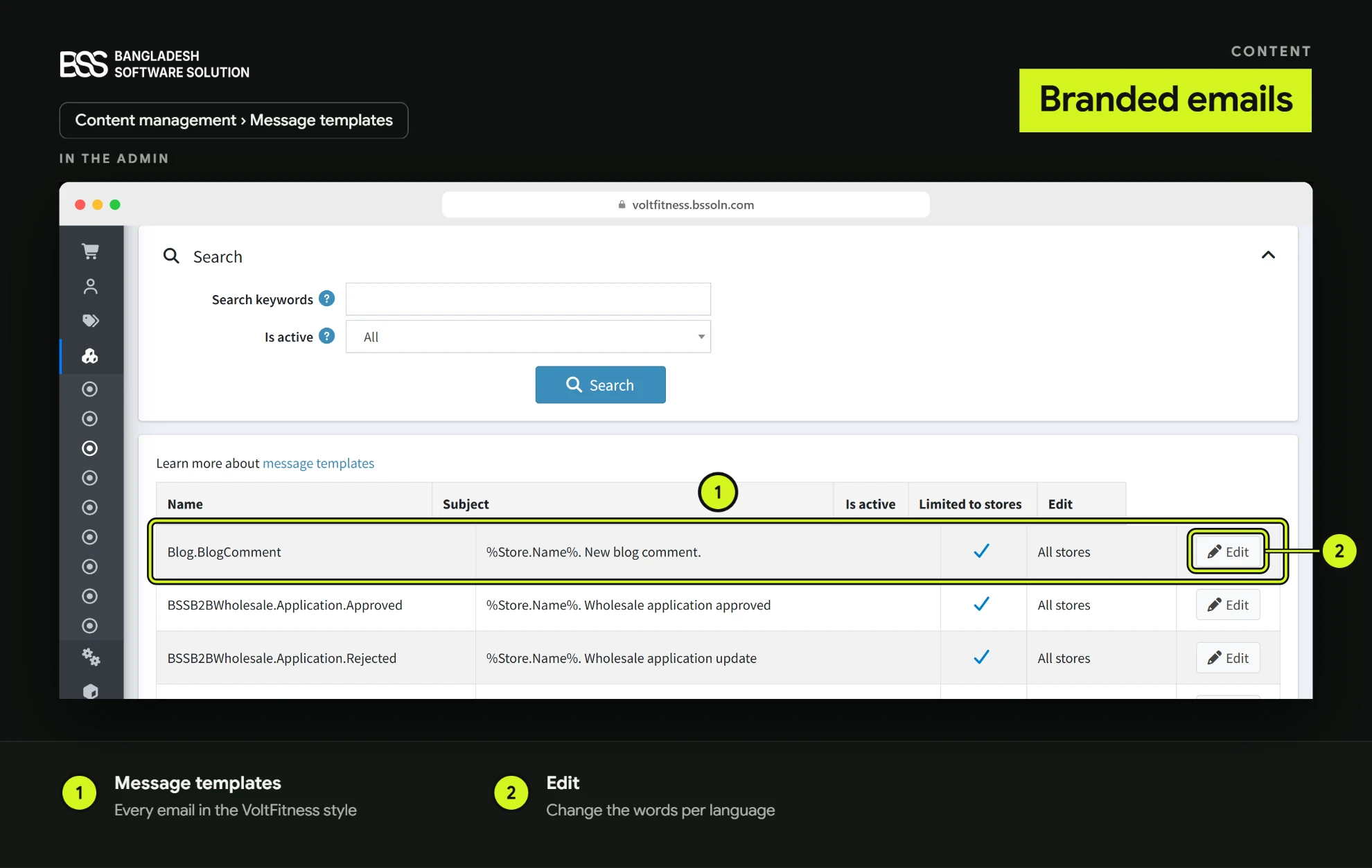
VoltFitness gives every nopCommerce email the store's look, from order confirmations to password resets. Edit the words in Content managementMessage templates.
 (opens the full-size picture)
- Message templates (1)
- Every email the store sends, each in the VoltFitness style.
- Edit (2)
- Change the subject and body per language. With the Visual Editor on for message templates, you can edit the body visually.
Get help
Stuck on a step, or need design changes, plugin work or an integration? The team that built VoltFitness is happy to help. You can also report a bug from BSSReport a bug in your admin.